
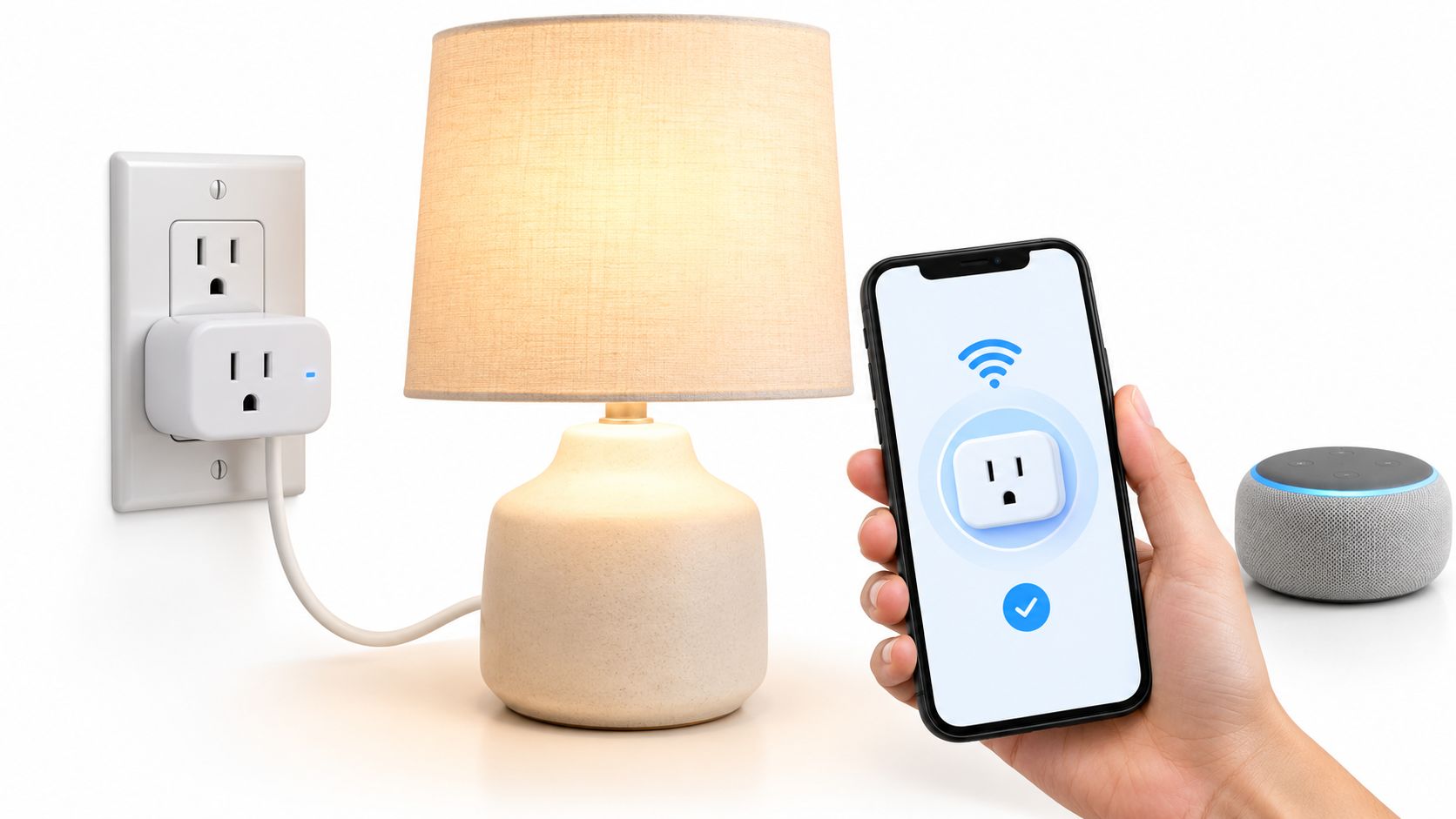
You've brought home a smart plug, found an outlet beside the lamp, and asked Alexa to turn it on. Instead, the plug keeps blinking, the app can't find it, and the lamp stays stubbornly dark. In Canadian condos and older houses, that frustrating first attempt is often about Wi-Fi settings, not a faulty device.
A good smart plug for Alexa should do more than respond to a voice command. It should connect reliably to your home network, make sense for your privacy expectations, and behave predictably if a winter storm knocks out power or internet. Here's how to choose, set up, and troubleshoot one without buying features you don't need.
Table of Contents
- Why Your First Smart Plug Pairing Fails
- What Alexa Compatibility Really Means
- Pairing Your Plug with the Alexa App
- Router and Wi-Fi Fixes That Actually Work
- Privacy and Outage Risks Most Guides Skip
- Canadian Availability and CAD Pricing Realities
- Your Final Checklist Before You Buy
Why Your First Smart Plug Pairing Fails
A typical setup goes like this: you open the Alexa app, add a plug, and wait for the discovery screen to find it. The plug is powered and its indicator light is flashing, but nothing appears. Before returning it, check the network conditions. Many plugs require a specific Wi-Fi band or security setting, and their setup process can be less forgiving than connecting a phone or laptop.
Start with the Wi-Fi band
Many smart plugs connect over 2.4 GHz Wi-Fi, while a phone may be using a combined network or a 5 GHz band during setup. Some routers manage both bands under one network name and steer devices between them automatically. That can confuse pairing, especially if the plug's setup instructions expect the phone and plug to use the same compatible network.
Look in your router or internet provider's app for separate 2.4 GHz and 5 GHz network controls. If the bands have separate names, connect your phone to the 2.4 GHz network before trying again. If the router combines bands, check its documentation for a temporary option to separate or prioritise the 2.4 GHz band.
Check security and the setup window
A plug may also reject a router security mode it doesn't support. If pairing stalls, check the manufacturer's requirements and compare them with the router's security settings. Don't weaken network security without a reason. If a change is necessary, follow the router maker's guidance and return to a secure supported configuration once setup is complete.
Pairing mode matters, too. A slow or differently coloured blink may mean the plug isn't ready to join Wi-Fi. Hold its button only as directed by the manufacturer, then start discovery again. The Alexa app can also time out before you've corrected the issue, so repeatedly tapping “discover” without changing anything rarely helps.
Practical rule: Confirm the plug's indicator means pairing mode, connect your phone to the required Wi-Fi band, then restart discovery. Change one setting at a time so you know what fixed it.
What Alexa Compatibility Really Means
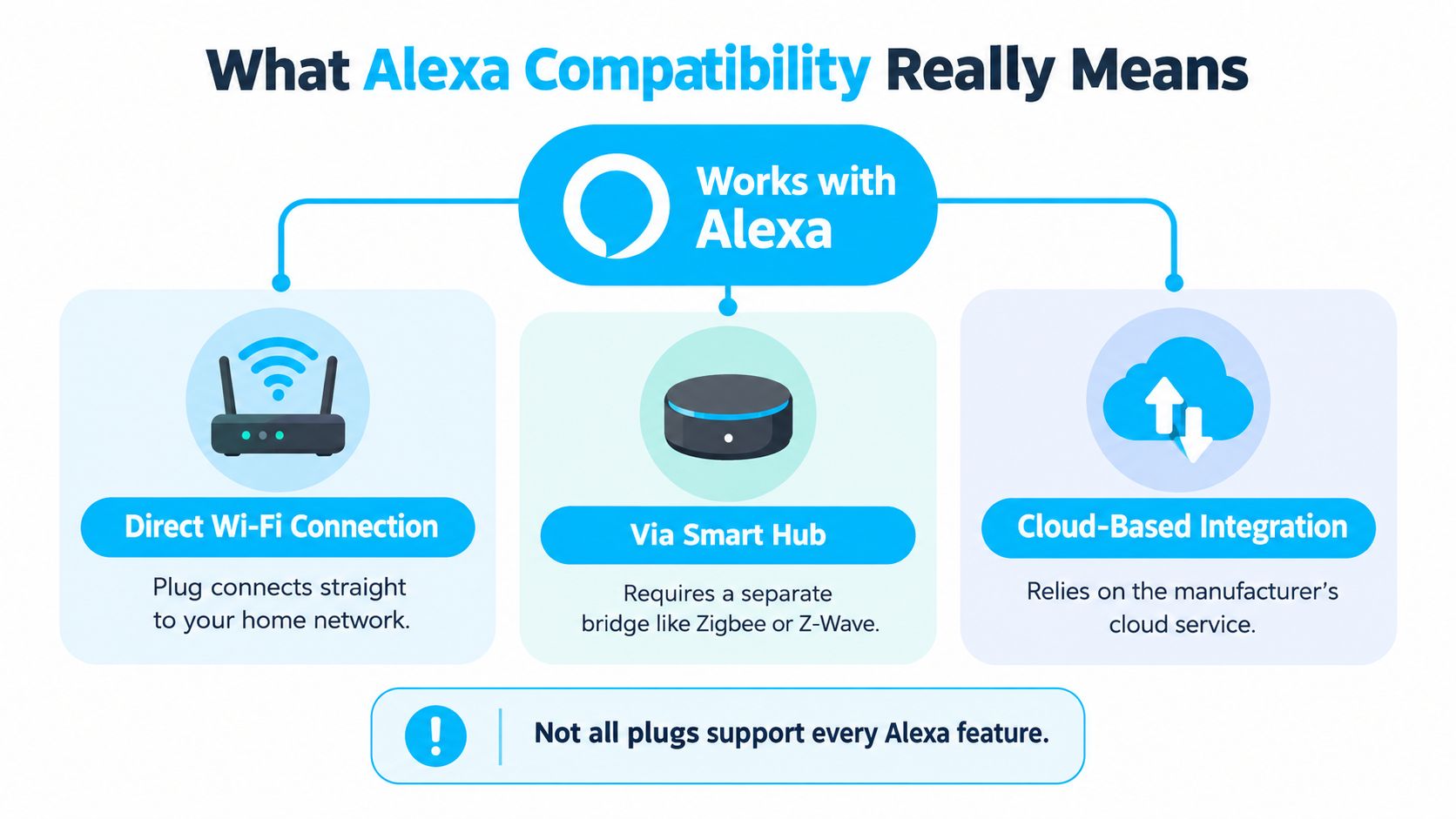
“Works with Alexa” describes an integration, not one universal connection method. A plug might connect directly to Wi-Fi, communicate through a separate smart-home hub, or rely on the manufacturer's app and cloud service to pass commands to Alexa. Those differences affect setup, internet dependence, and the features you can use.
The category is familiar to many Canadians, but smart plugs aren't yet as common as voice assistants. Statistics Canada's 2022 Canadian Internet Use Survey found that 30.0% of Canadians used smart speakers or smart-home assistants, while 13.8% used smart plugs or smart lights. The survey also reported that 47.4% used at least one internet-connected smart-home device at home, and 94.0% had internet access at home. These figures describe national use, not sales of particular products, and the assistant category isn't limited to Alexa. They do, however, help explain why shoppers may know voice control but still be new to plug setup (Statistics Canada's survey results).
Read the box beyond the Alexa badge
A direct Wi-Fi plug joins your home network and typically uses the manufacturer's app to complete setup before Alexa can control it. A hub-based plug needs a compatible bridge, which may be a separate device or a smart-home controller you already own. A cloud-based integration links the manufacturer's account or service with Alexa, so commands may depend on both services being available.
Check the product page for the exact requirements, not just the compatibility logo. Look for whether it needs a hub, which Wi-Fi band it supports, whether it needs a separate app or account, and which Alexa functions are available. A plug may support voice on/off commands without supporting every routine, status update, or energy feature.
If you're building a wider setup, compare the plug's connection method with the rest of your devices before choosing a platform. Celmin's overview of smart-home systems available in Canada can help you think through that broader decision.
Pairing Your Plug with the Alexa App
Start with the plug's own instructions. Some models are discovered directly in Alexa, while others need to be set up in a brand-specific app first. Keep the plug, phone, and router close enough for a clean connection during setup, and make sure the phone is connected to the home network rather than a guest network.
Set up the plug and start discovery
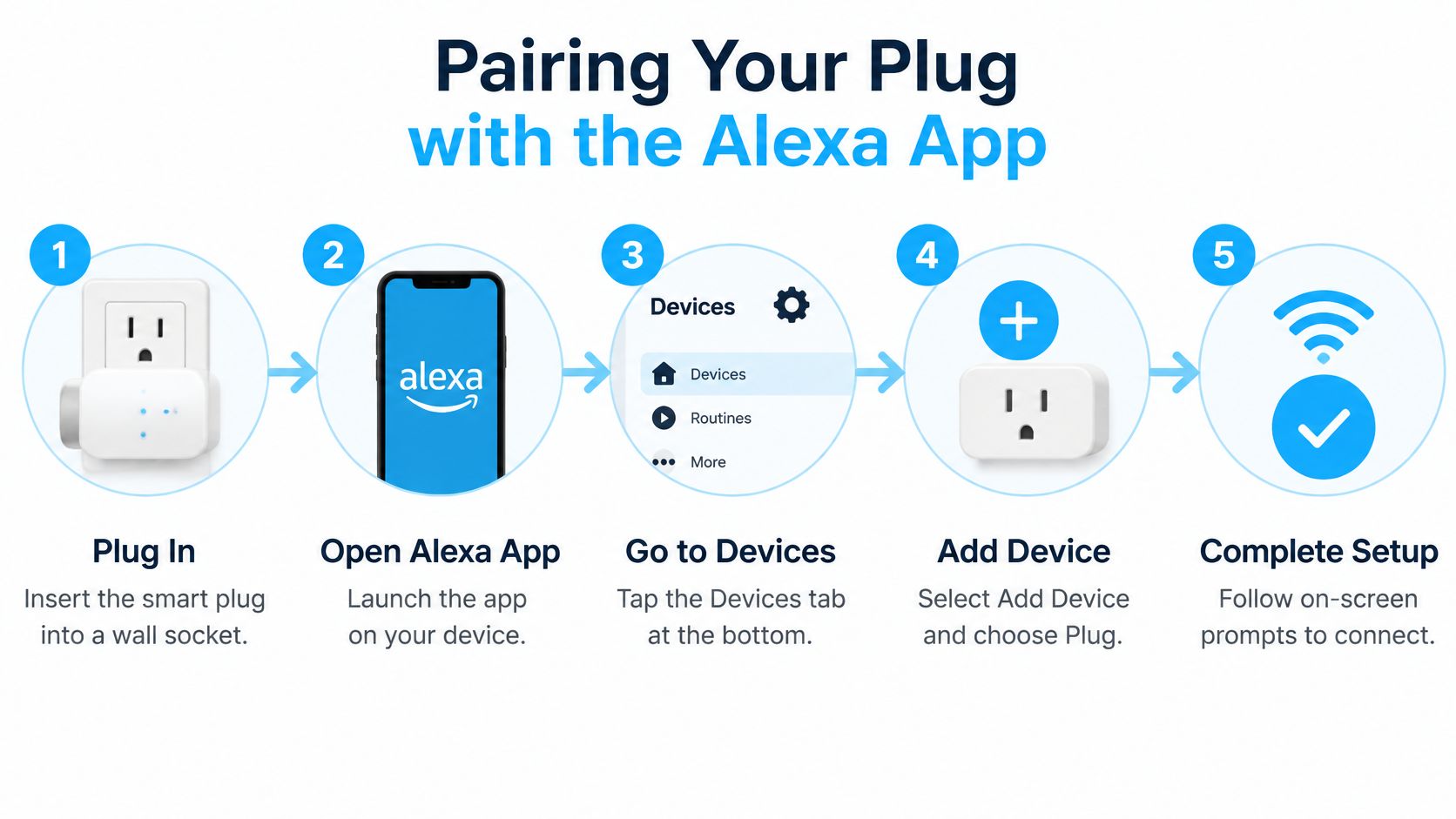
Plug the device into a wall outlet and check its indicator. If it isn't in pairing mode, use the manufacturer's instructions to start it. Avoid putting a high-load appliance into the plug during initial setup. A lamp is a straightforward test load, and it's easy to see whether the connection works.
Open the Alexa app and go to Devices, then choose the option to add a device. Select the plug category if it appears, or follow the manufacturer's instructions for linking its service or skill. If you're prompted to sign in to the plug maker's account, use the account connected to the device's own app.
Some setup flows request location permission to identify nearby networks or complete device discovery. Grant only the permissions needed for setup, and review the app's settings if you'd rather restrict access afterward. If Alexa reports that it can't find anything, don't immediately repeat the same scan. Confirm the plug is still blinking in pairing mode, check that the phone is on the required network, and restart the plug's setup process if needed.
Verify control before making a routine
Once the plug appears in Alexa, give it a clear name such as “Living Room Lamp.” Names that describe the device and room are easier to use than generic labels such as “Plug 2.” Test the switch in the app first, then try a simple spoken command.
Create a basic schedule only after manual control works. A schedule is a useful check that the device is properly linked, but it doesn't prove that the automation will survive an internet outage. That depends on the plug's design, so check its documentation before relying on it for anything important.
For a visual walkthrough, use this setup guide:
Router and Wi-Fi Fixes That Actually Work
A plug doesn't need a fast internet plan to switch a lamp reliably. It does need a compatible, stable connection between the plug, router, and online services used for setup or voice control. Statistics Canada's broadband indicator reports that 97.1% of Canadian households had access to service meeting the 50 Mbps download and 10 Mbps upload benchmark in 2024, up from 85.5% in 2018. That measures service availability, not whether every home subscribes to it or whether Wi-Fi reaches every outlet. For a smart plug, router compatibility and signal quality usually matter more than headline speed (Statistics Canada's broadband availability indicator).
Match the fix to the symptom
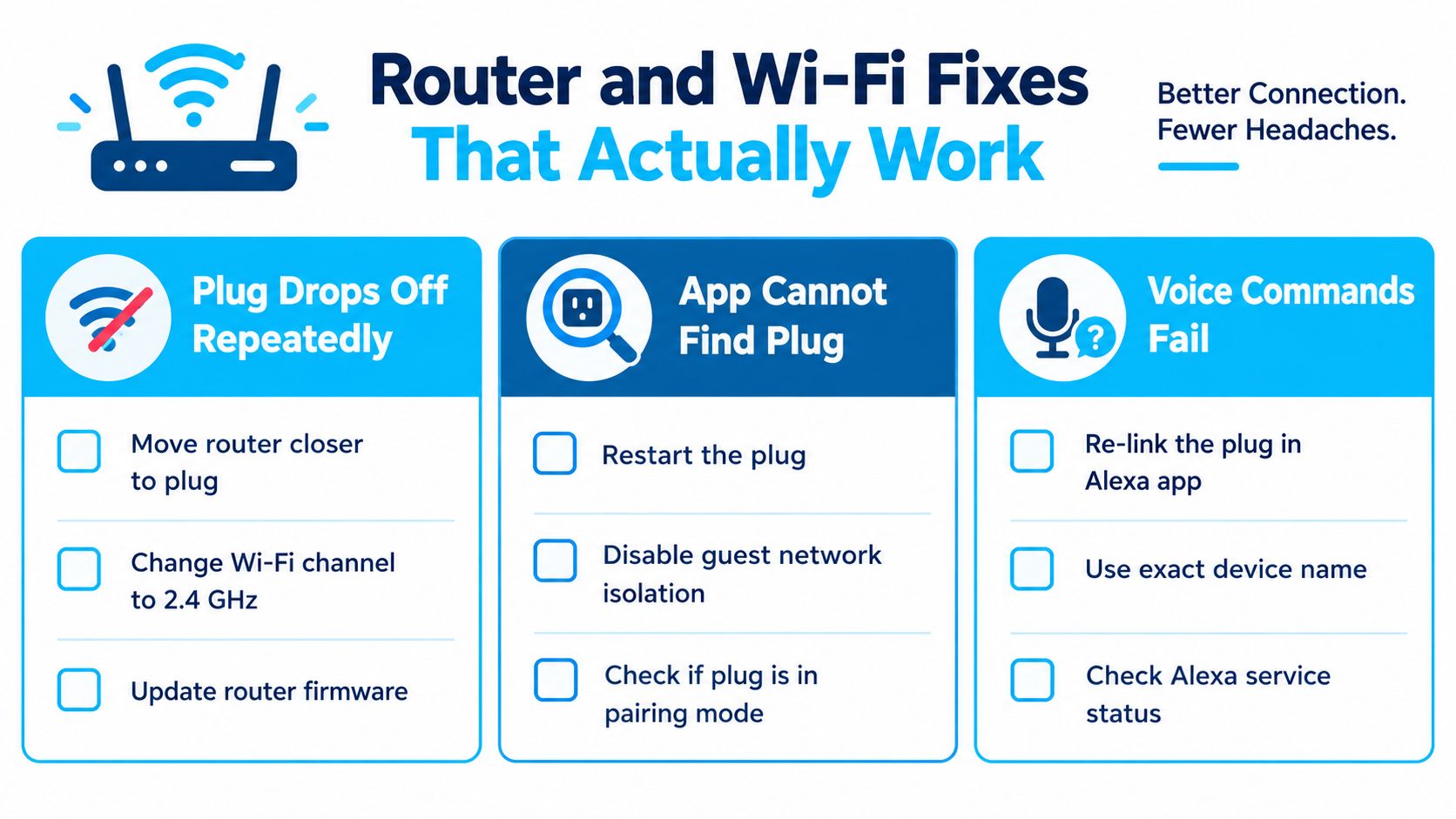
If the plug repeatedly disconnects, check its signal where it is plugged in. A router tucked behind a television or at the far end of a condo may provide a weak signal through concrete, masonry, or several walls. Try a nearer outlet temporarily. If the connection improves, address coverage with a better router position or a mesh access point rather than assuming the plug is defective.
If the app can't find the plug, confirm it's in pairing mode and that the phone is using the same suitable home network. A guest network may block devices from seeing one another, even when both can access the internet. Check the router's client-isolation or guest-network settings before moving the plug onto your main network.
If voice commands fail but the plug works in its own app, the Wi-Fi connection may be fine and the Alexa link may need attention. Reconnect the manufacturer's integration, check the device name, and ask Alexa to rediscover devices. A short, distinctive name is less likely to be confused with another device or a room name.
Change settings cautiously
Some routers offer band steering, which moves devices between Wi-Fi bands. If your plug's instructions warn about this, temporarily separate the bands or disable steering while you set it up. Check the plug's documented security requirements before changing the router's security mode. Don't turn off security or leave a temporary configuration in place without understanding the trade-off.
For a symptom-by-symptom walkthrough, use Celmin's guide to connecting a smart plug to Wi-Fi. On a crowded condo network, the useful fix is often improving the signal or separating device access, not upgrading to a faster internet plan.
Privacy and Outage Risks Most Guides Skip
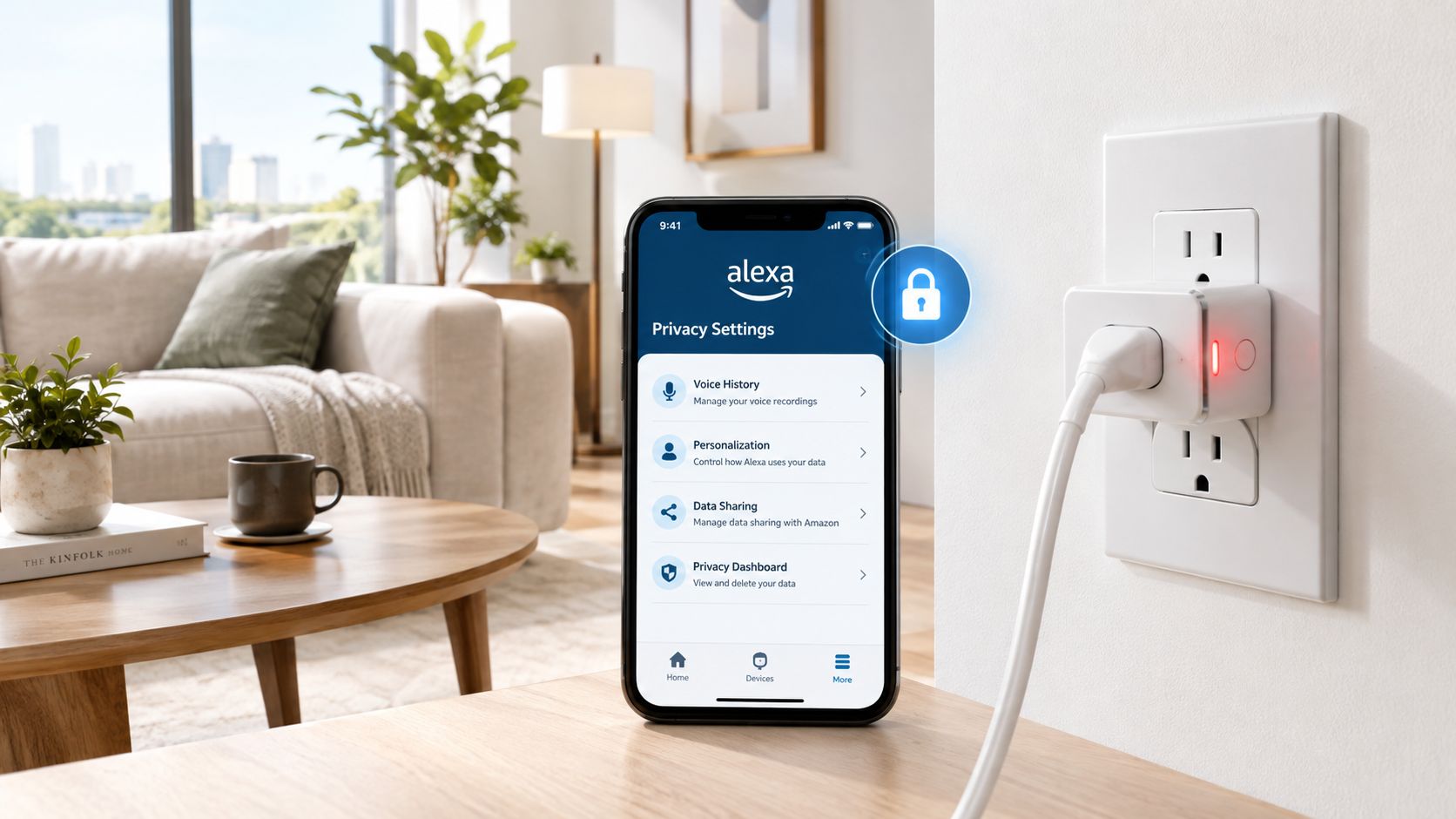
A smart plug can reveal more than whether a lamp is on. Its activity may show when someone uses a room, follows a routine, or switches an appliance on and off. That doesn't mean every plug gathers the same information, but buyers should check which account and cloud services the device uses, what activity appears in the app, and how to delete stored history.
A Canadian survey of 881 smart-home users found that 64.9% used smart speakers, while 84.8% of those users didn't believe their devices collected personal information. That gap points to a practical reason to review privacy controls before connecting devices, especially when voice assistants and shared household accounts are involved (the Canadian smart-home privacy survey).
Check who can see and change activity
Review the Alexa app's privacy controls and the plug maker's app for ways to inspect or delete smart-home activity. Check whether removing activity in one app also removes it from the other. If roommates or guests can use a shared Echo device, consider what they can switch, what routines they can trigger, and whether the plug's name reveals anything private.
A cheap model can be a poor value if it requires accounts and cloud services you don't want, or makes activity difficult to manage. Compare the data controls and offline behaviour, not only the purchase price and Alexa logo.
Test what happens when the connection drops
The CRTC reports that Canadians' experience of home-internet outages lasting at least 24 hours varies by region and is more closely associated with natural disasters or harsh weather than broadband technology. That makes outage behaviour worth checking in Canadian homes, particularly where winter weather can interrupt service (the CRTC's report on Canadian communications services).
A smart plug that behaves predictably after an outage can be more useful than one with extra features that only work when every cloud service is online.
Find out whether the plug retains a local timer, loses remote control, stops accepting voice commands, and returns to an on, off, or previous state when power comes back. Test those behaviours with a lamp, not a heater or other appliance where an unexpected restart could cause a safety or property risk. For pumps, holiday lighting, or other essential equipment, don't assume a consumer smart plug is a dependable backup control.
Canadian Availability and CAD Pricing Realities
Canadian shoppers should check more than the listed price. A product sold through a Canadian retailer may still have different regional versions, and a US-market listing can have unfamiliar warranty terms or an app experience that doesn't match the local product. Before ordering, confirm Canadian outlet compatibility, the plug's electrical rating, and whether the manufacturer supports the model in Canada.
Packaging and product documentation should make the electrical requirements clear. Look for Canadian compliance information and read the warranty terms rather than assuming a cross-border purchase is covered locally. Also check the final checkout total, including shipping, taxes, and any import charges. A low displayed price can become less attractive once delivery and support are considered.
| Retailer | Typical Price Range | Availability Notes |
|---|---|---|
| Amazon.ca | Varies by model and seller | Check the seller, Canadian warranty terms, and whether the listing describes the Canadian model. |
| Best Buy Canada | Varies by model and stock | Review product specifications and confirm whether pickup or delivery is available in your area. |
| Local electronics retailers | Varies by store and model | Ask about local warranty support and inspect the packaging and compliance details before purchase. |
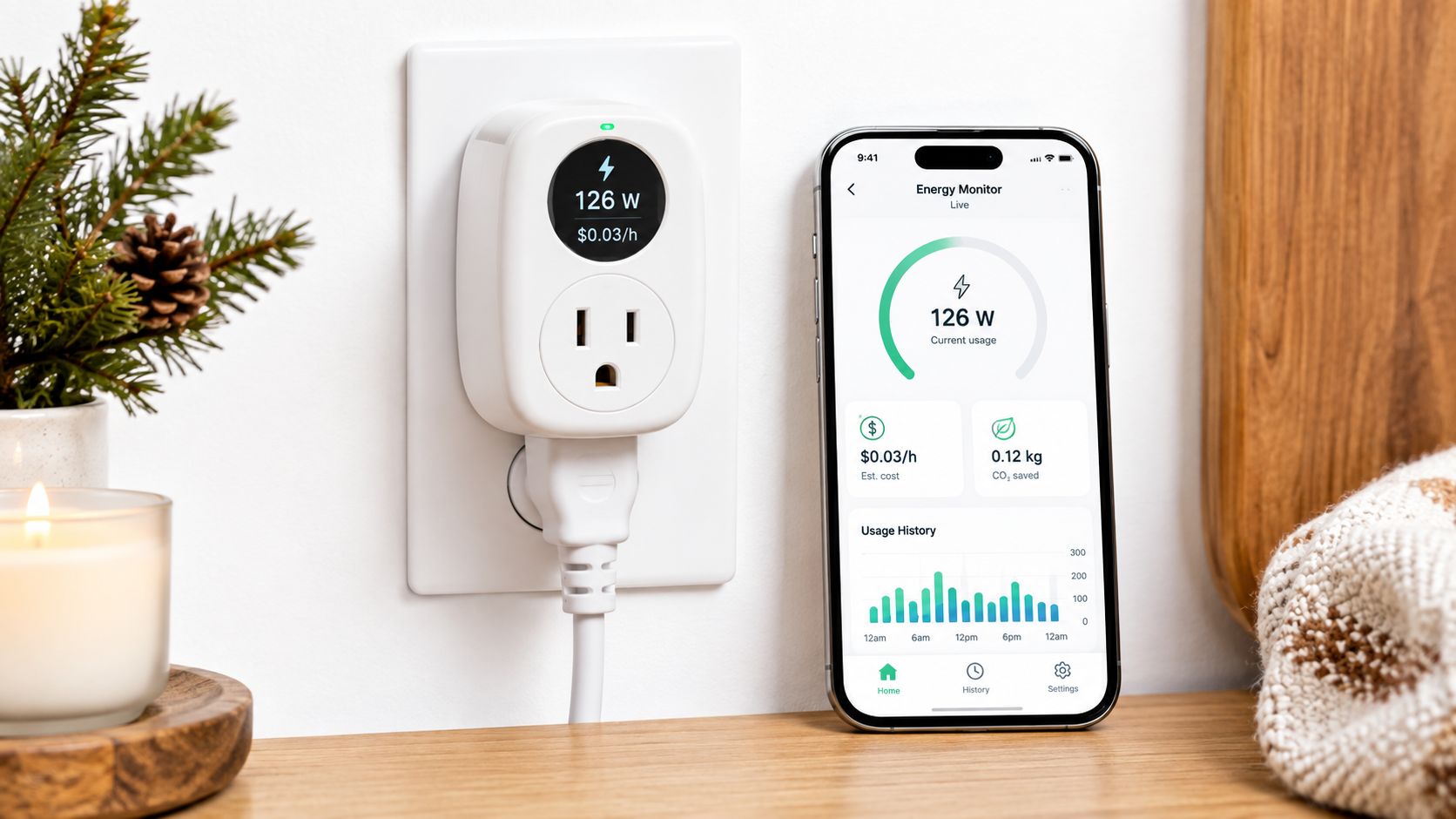
Don't treat the cheapest option as a bargain if it requires a hub you don't own, a cloud account you don't want, or cross-border support. If energy use matters, verify that monitoring is included in the particular plug rather than assuming every Alexa-compatible model offers it. Celmin's guide to smart plugs with energy monitoring can help you compare that feature with basic on/off control.
Your Final Checklist Before You Buy
A suitable plug doesn't need the longest feature list. It needs to fit your router, your household's privacy expectations, and the job you expect it to do. Check the product listing and manual before checkout, then keep the packaging until setup and voice control both work.
- Compatibility: Confirm that the listing names Alexa support and explains whether a hub or manufacturer account is required.
- Wi-Fi: Check the supported band and router requirements, especially if your condo or older home uses combined Wi-Fi bands.
- Privacy: Find out which apps hold activity information and how you can review or delete it.
- Outages: Check whether schedules run locally and what state the plug returns to after power comes back.
- Canadian purchase: Verify electrical compatibility, local warranty coverage, availability, and the full CAD checkout cost.
Before you pay, ask: Does it support the Wi-Fi band my router provides? Will it work without a hub? Can I manage and delete activity? What happens after a power interruption? If the listing doesn't answer those questions, look for the manual or contact the seller before buying.
For most Canadian households, a good Alexa-compatible plug is one with clear setup instructions, stable Wi-Fi support, useful privacy controls, and predictable recovery after an outage. A simple model that does those things well is a safer choice than one whose extra features depend on services you can't easily manage.
Celmin publishes Canadian smart-home buying guides, product comparisons, and practical setup advice that can help you compare plugs available locally. Visit Celmin to explore its coverage before choosing a smart plug for Alexa.
Sign up or sign in to join the conversation.