
You've plugged a new smart socket into the wall, the LED is blinking, and the app is sitting at “connecting” while your phone insists everything is fine. In a Canadian condo, this often happens beside a perfectly capable Bell, Rogers, TELUS, or Shaw gateway. The problem usually isn't internet speed. It's the pairing path, the Wi-Fi band, or a router setting the app hasn't explained clearly.
The reliable answer to how to connect a smart plug to Wi-Fi is to identify what the plug is doing during onboarding. Some use Bluetooth to pass setup information, some create a temporary device Wi-Fi network, and others need access-point mode. Once you match that method to your router, pairing becomes much less mysterious.
Table of Contents
- Before You Pair What to Check on Your Plug and Phone
- How to Connect Smart Plug to WiFi Using Your App
- Understanding Your Canadian Router and 2.4 GHz Requirements
- When Pairing Fails Quick Fixes That Actually Work
- Testing Your Connection and Keeping It Stable in Canada
- Final Checklist for a Reliable Smart Plug Setup
Before You Pair What to Check on Your Plug and Phone
A condo resident recently tried to pair a smart plug from the kitchen counter while the router sat in the hallway. The phone was on a combined network name, Bluetooth permissions were off, and the plug was designed for 2.4 GHz Wi-Fi only. Repeating the password didn't help because the setup conditions were wrong before the app even opened.
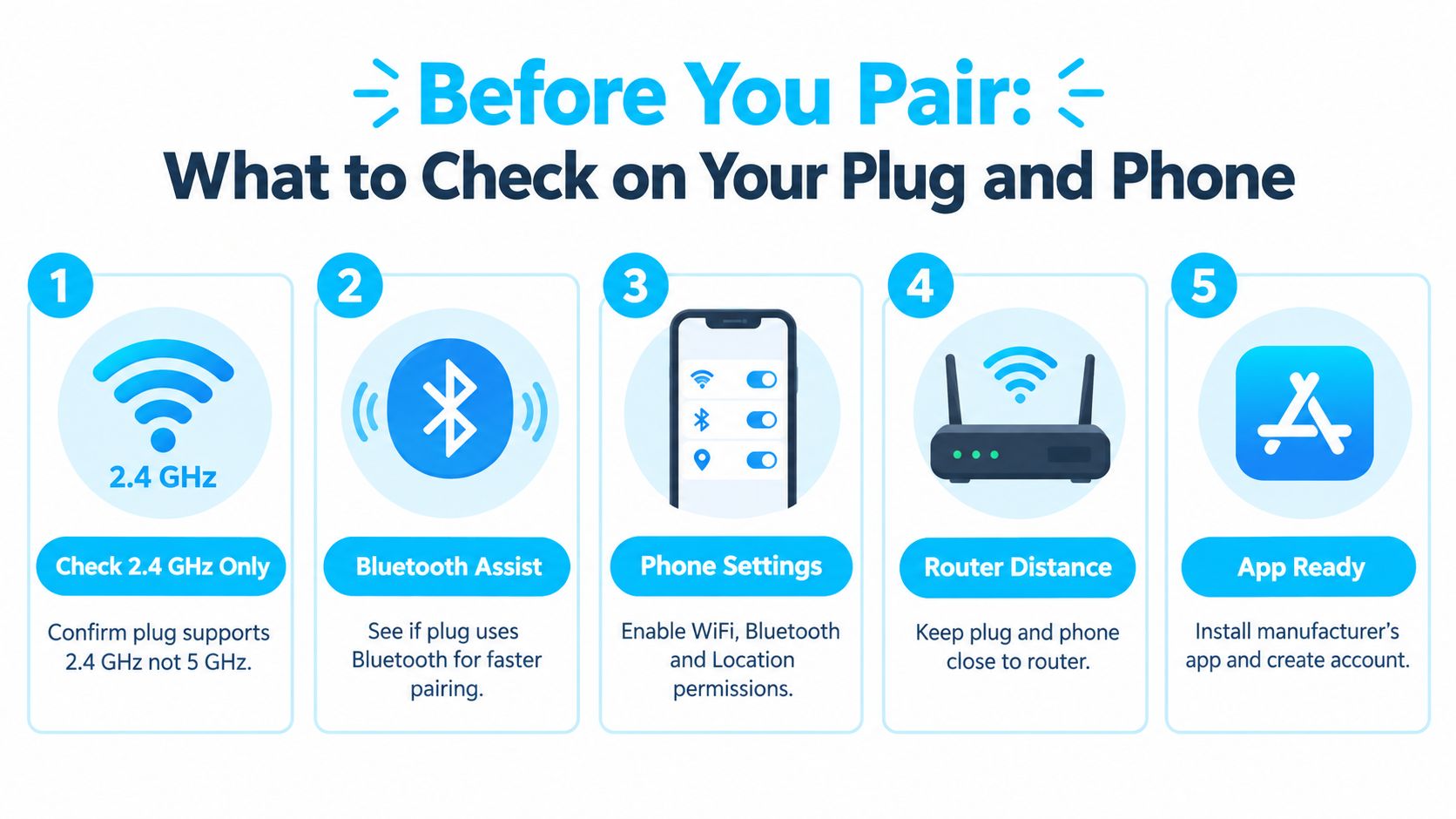
Start by reading the product label and manual. Many Canadian smart plugs support 2.4 GHz Wi-Fi but not 5 GHz, while Bluetooth may be used only during initial provisioning. TP-Link's Canadian product information describes compatible models as “2.4 GHz WiFi Only, Bluetooth (for setup only)”, so Bluetooth doesn't necessarily mean the plug will keep networking through Bluetooth after installation. Check the manufacturer's specifications rather than assuming every plug follows the same process.
Identify the onboarding route
Look at the LED behaviour after you plug the device in or hold its button. A rapidly flashing light usually means the plug is ready for normal app pairing. If your phone asks to join a network named after the device, the plug is broadcasting a temporary Wi-Fi network. If the app tells you to connect to a fallback hotspot or access point, you're using AP mode.
Before pairing, prepare the practical basics:
- Install the correct app: Use the manufacturer's app, create the required account, and sign in before starting.
- Keep the password available: Enter the exact home Wi-Fi password, including capital letters and symbols.
- Enable permissions: Turn on Wi-Fi, Bluetooth, and Location access if the app requests them. Some phones use Location permission to discover nearby networks.
- Move the plug temporarily: Place it close to the router for onboarding, even if its final location is across the room.
- Use the same 2.4 GHz network: Connect your phone to the 2.4 GHz SSID before you add the device.
Canadian broadband access is generally a solid foundation for smart-home setup. Statistics Canada reports that 96.4% of Canadian households had access to unlimited broadband at or above the 50/10 benchmark in 2024 (Statistics Canada's telecommunications data). That makes local Wi-Fi alignment, not raw speed, the first thing to check. For model-specific buying context, compare the pairing details in Celmin's smart plug review.
How to Connect Smart Plug to WiFi Using Your App
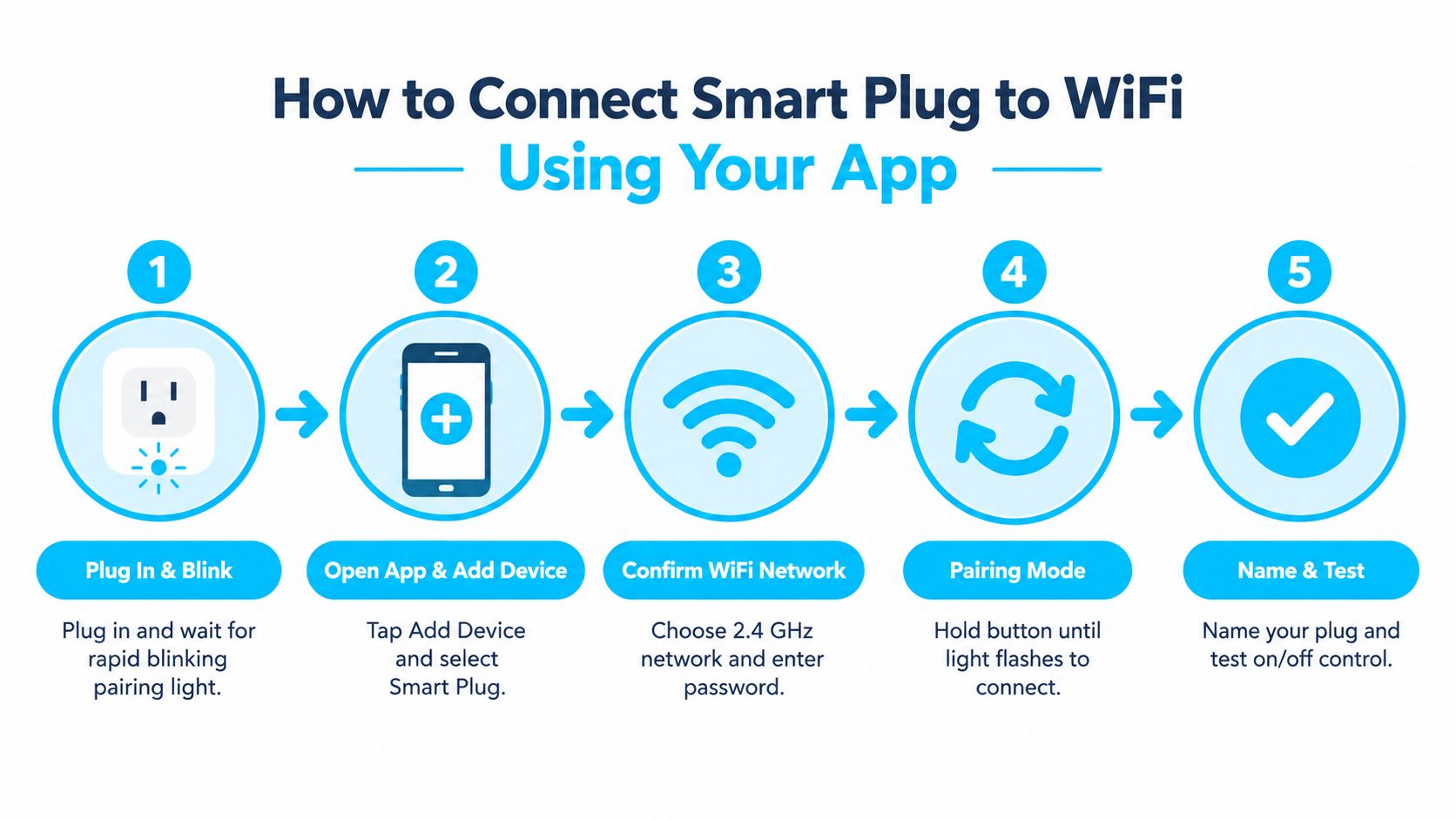
Plug the smart socket into a wall outlet near your router and wait for its indicator light. The manual may call for a short button press, a longer hold, or a reset before the LED begins flashing. Don't continue until the light pattern matches pairing mode, because a solid or slowly pulsing light can mean the plug is already configured or waiting for a different onboarding method.
Open the manufacturer's app, choose Add Device, and select the correct smart-plug category. The app may ask for Bluetooth and Location permission before it searches. Approve those requests temporarily if you're comfortable with them, because the app may need Bluetooth to discover or provision the plug even though the plug will ultimately join your home Wi-Fi.
Follow the path your plug presents
If the app discovers the plug over Bluetooth, keep the phone close and allow the app to transfer the home network details. You'll then select your 2.4 GHz network and enter its password. Bluetooth is acting as the courier here, not the plug's permanent connection.
If the plug creates a temporary device Wi-Fi network, leave the manufacturer's app when prompted and open the phone's Wi-Fi settings. Join the temporary network, return to the app, and let it send your home network credentials. Your phone may warn that the device network has no internet access. That warning is expected during this stage.
AP mode is the fallback route. If normal pairing fails, press and hold the plug's button until the LED changes to a slower or alternate flashing pattern, then select the AP or compatibility option in the app. The app may ask you to join the plug's temporary hotspot and return once the connection is established.
Keep the phone connected to the 2.4 GHz SSID throughout the process. If the app can't find your network, choose Other Network or enter the SSID manually instead of relying on the scan. TP-Link Canada recommends re-scanning, using “Other Network,” and, where necessary, adjusting the router to channel 1, 6, or 11, 20 MHz bandwidth, and WPA2 encryption (TP-Link Canada's pairing guidance).
Practical rule: Pair beside the router first. Test the plug in its intended room only after the app confirms that setup is complete.
Name the plug by location and function, such as “Living room lamp” or “Bedroom fan.” Tap the on-screen control several times, then use the physical button once. The relay should respond promptly, and the app should show the updated state rather than spinning indefinitely.
Watch the complete app flow in this setup demonstration:
Understanding Your Canadian Router and 2.4 GHz Requirements
Most mainstream Wi-Fi smart plugs sold in Canada use 2.4 GHz, not 5 GHz. The lower-frequency band generally reaches farther through walls, while the plug's small radio and simple antenna are designed around modest bandwidth rather than high throughput. That's appropriate for an on/off command, but it creates a problem when a modern gateway presents 2.4 GHz and 5 GHz under one network name.
A dual-band router may steer your phone toward 5 GHz while the plug can only join 2.4 GHz. Some apps handle that handoff well. Others fail during discovery, credential transfer, or the final cloud-registration stage. The practical fix is to create separate SSIDs, temporarily disable 5 GHz during onboarding, or use the router's smart-device compatibility option if it provides one.
Settings that deserve attention
ISP gateways from Bell, Rogers, TELUS, and Shaw use different menus, but the relevant choices are similar. Look for band steering, wireless security, channel width, guest-network isolation, and access-point isolation. Mesh systems add another complication because the app may move your phone between nodes while the plug is trying to join the main network.
| Setting | What to Choose for Pairing | Why It Matters |
|---|---|---|
| Wi-Fi band | A dedicated 2.4 GHz SSID | Many plugs can't join 5 GHz networks |
| Security | WPA2 where the plug requires it | Older or budget devices may reject newer security modes |
| Channel | 1, 6, or 11 if manual selection is needed | These are the channels TP-Link Canada identifies for configuration troubleshooting |
| Channel width | 20 MHz | Narrower settings can improve compatibility during onboarding |
| Band steering | Temporarily disable it, if necessary | Steering can move the phone away from the band the plug needs |
| Guest isolation | Use the main home network | Isolation can block communication between the phone and device |
TP-Link's Canadian product documentation confirms that some models don't support 5 GHz and use Bluetooth only for setup (TP-Link Canada's Tapo P125M information). For a broader explanation of wireless choices, use Celmin's guide to router settings for fast internet, but change only the settings relevant to pairing.
Mesh users should keep the plug near the primary router or nearest node during setup. Once it's adopted, move it gradually toward its final outlet and test control there. Don't pair it on a guest SSID unless the manufacturer specifically supports that arrangement, because client isolation can prevent the app from completing local discovery.
When Pairing Fails Quick Fixes That Actually Work
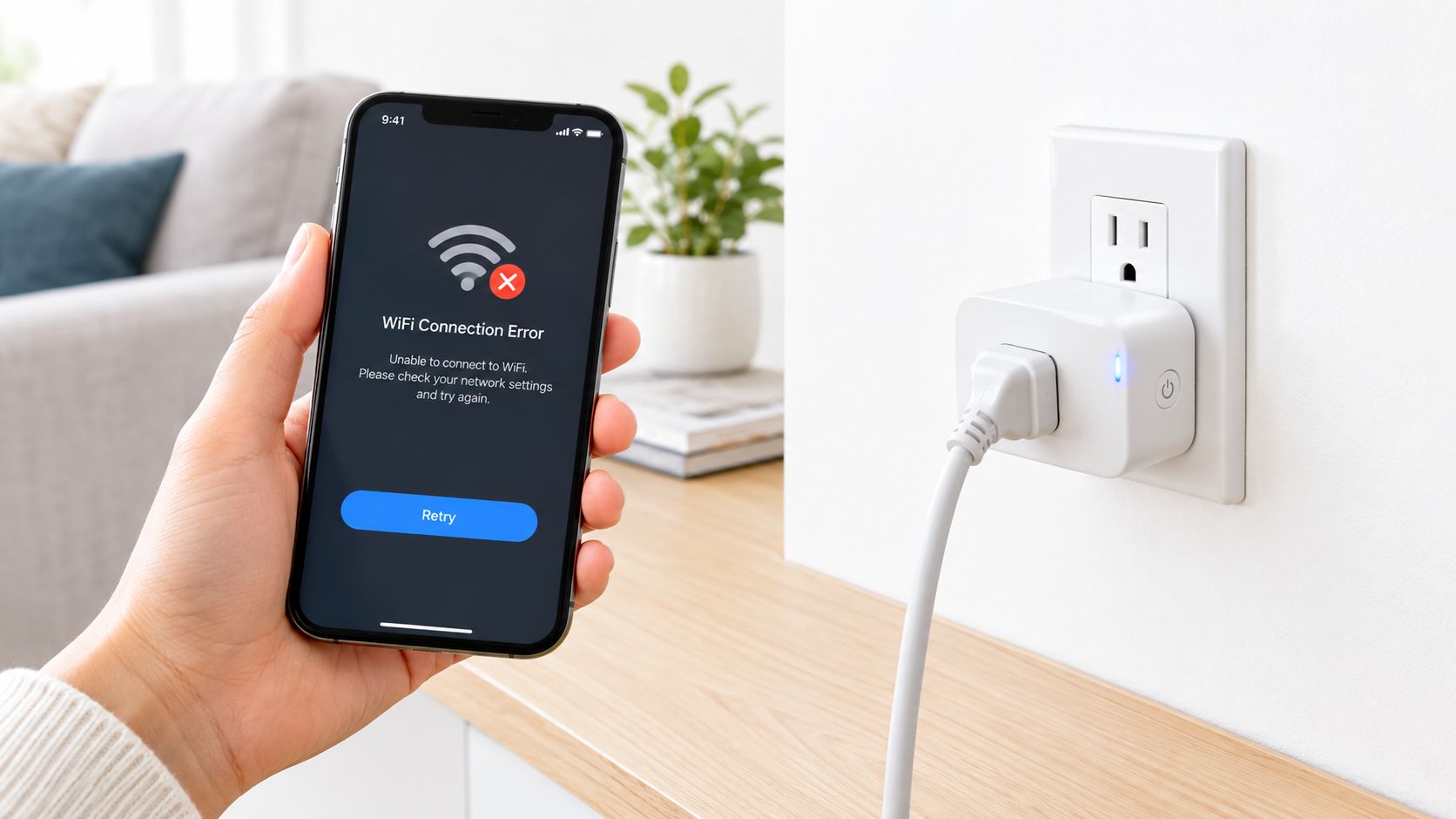
A failed pairing screen is useful if you read the symptom. “Device not found,” “incorrect password,” “connected but offline,” and “configuring” point to different parts of the process. Restarting everything can help, but targeted changes usually save more time.
Match the symptom to the fix
The app can't find the plug. Confirm the LED is flashing in the required pattern, then move both phone and plug close to the router. Turn Bluetooth and Location permission off and back on, close the app, and start discovery again. If the plug has a temporary device network, check the phone's Wi-Fi list rather than waiting for Bluetooth discovery.
The password is rejected. Use the 2.4 GHz SSID manually through Other Network and type the password again. Avoid copying an extra space, and temporarily use WPA2 if the plug's documentation doesn't support the gateway's newer security mode. The password may be correct even when the router is offering the wrong band.
The plug connects, then disappears. Check whether it joined a guest network, whether AP isolation is active, and whether the final outlet is outside useful coverage. Reboot the router and plug, then remove the device from the app and add it again using the correct pairing route.
The app remains stuck on configuring. Disable any VPN or network-filtering service on the phone, then retry. A phone can have internet access while a privacy tunnel or filtering profile interferes with local discovery or credential delivery. Don't switch randomly between Bluetooth, temporary Wi-Fi, and AP mode. Reset the plug and follow the method shown in its manual.
If the app asks you to join a device network, do it. Staying on your home Wi-Fi and waiting for the app to solve that handoff rarely works.
Separate the router problem from the range problem
A plug that fails beside the router has a configuration issue. A plug that pairs there but fails in a basement, at the end of a hallway, or behind several dense walls has a coverage issue. In the second case, moving the router, adding a compatible mesh node, or using a properly configured extender is more useful than repeatedly resetting the plug. See Celmin's guide to extending Wi-Fi range for placement options.
On a combined ISP network, temporarily disabling 5 GHz can remove band-steering confusion. On a mesh system, pause automatic band selection during onboarding if the manufacturer offers that control. Restore normal settings after the plug is online and verify that it remains reachable.
Testing Your Connection and Keeping It Stable in Canada
A successful setup ends with testing, not the moment the app says “added.” Toggle the plug from the app, press its physical button, and check whether the displayed state changes each time. If you use Google Assistant, Alexa, Apple Home, or another controller, test that integration separately because a plug can work in the manufacturer's app while the voice platform still needs permission or account linking.
Restart the router and wait for the plug to return online. This confirms that the device reconnects after a normal network interruption rather than working only because the original pairing session is still active. Test the final outlet in the room where you'll use it, particularly in a condo with concrete walls, a basement with mechanical equipment, or a long narrow home where the router sits at one end.
Keep the plug away from appliances and clutter that can interfere with its signal, and avoid hiding it behind large metal objects. Install firmware updates through the manufacturer's app when they're offered, then confirm the plug still responds. Use a consistent room-based name so schedules and voice commands remain understandable after you add more devices.
Canada's home internet baseline is strong, but access hasn't been uniform. ISED's broadband summary reported that 99.2% of urban households had access to at least 50/10 service in 2020, compared with 54.4% of rural households and 39% of First Nations reserves (ISED's internet access summary). The same source describes later improvement in rural access, reinforcing the practical diagnosis: most current pairing failures come from local Wi-Fi conditions, not a need for faster internet.
For a larger home, use a Wi-Fi coverage calculator to estimate whether the intended outlet needs another access point. Once the connection survives a reboot and works from its final location, schedules, timers, and automations are safe to add.
Final Checklist for a Reliable Smart Plug Setup
A dependable smart plug installation comes down to three decisions. Put the phone and plug on the right 2.4 GHz network, identify whether the plug uses Bluetooth, temporary device Wi-Fi, or AP mode, and verify control after the app reports success.
Before you put the plug into regular service, confirm the following:
- Network match: The phone joined the intended 2.4 GHz SSID, and the plug isn't stranded on a guest network.
- Pairing method: You followed the method shown by the LED and app instead of repeating a failed discovery route.
- Physical placement: The plug paired close to the router and still responds from its permanent outlet.
- Control check: App control, the physical button, and any connected voice assistant produce the expected result.
- Recovery check: The device reconnects after a router restart and remains visible in the app.
- Maintenance: The manufacturer's app is available, firmware updates can be installed, and the plug has a clear room-based name.
Renters don't need access to advanced networking equipment to get a stable setup. Homeowners with ISP gateways or mesh kits may need one temporary band change, but that's usually enough to complete onboarding. Canadian homes vary widely, from compact apartments to multi-level houses, so the final test at the intended outlet matters more than the apparent strength of the signal beside the router.
Once the plug is stable, add one automation at a time. Start with a simple schedule, check the result, and only then connect it to a broader smart-home routine. That approach makes future troubleshooting much easier because you'll know whether a failure comes from the plug, the network, or the automation.
If your smart plug still won't pair, visit Celmin for Canadian smart-home reviews, router guidance, and practical setup tools. Use its Wi-Fi coverage resources to assess difficult rooms, then choose your next device with compatibility and local home conditions in mind.
Sign up or sign in to join the conversation.