
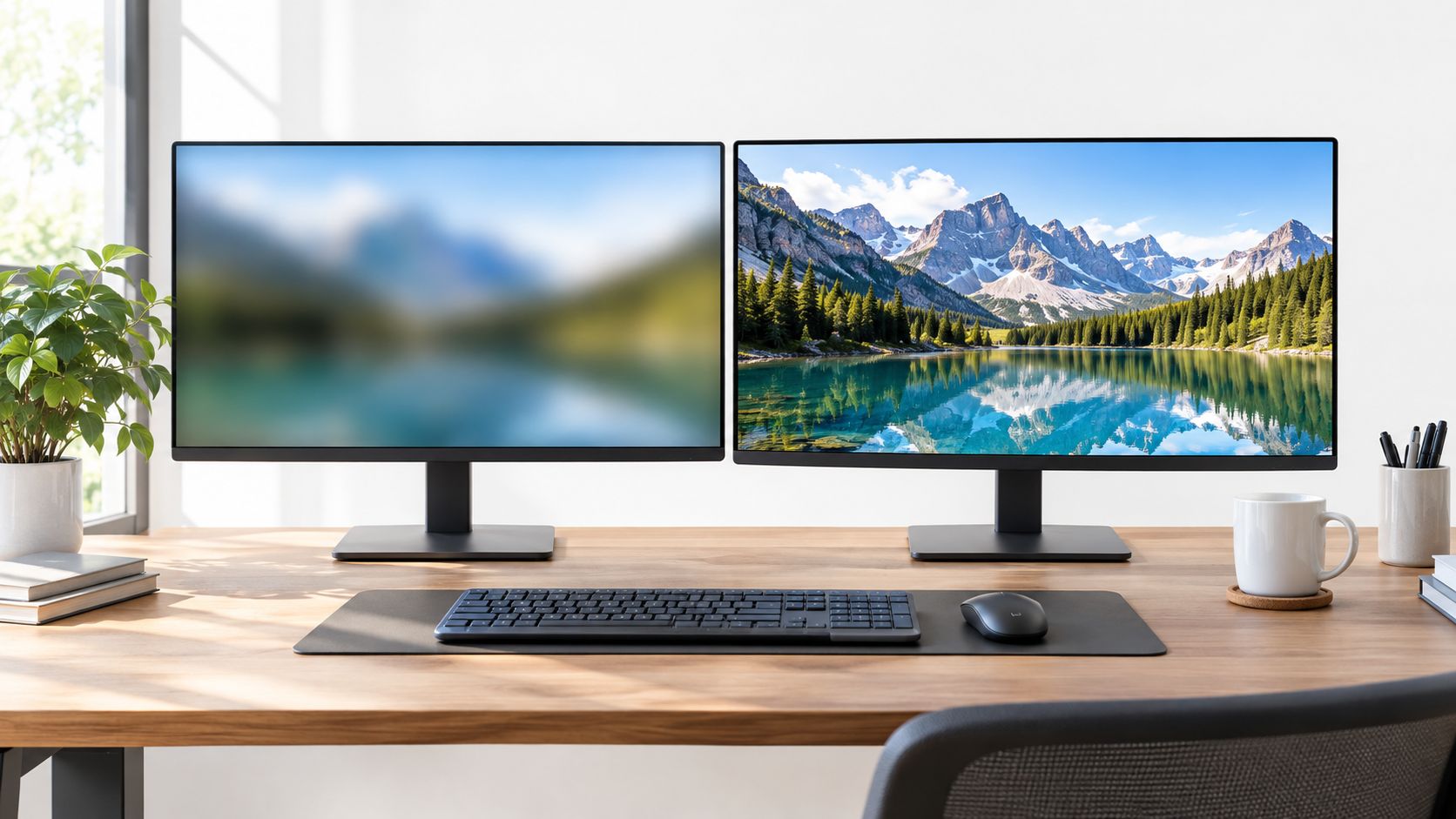
You're on a Canadian retailer's monitor page with two tabs open. One screen is an affordable 24-inch 1080p model with a fast refresh rate. The other is a sharper 27-inch 1440p display that costs more and may expose a second problem when you launch a demanding game: your graphics card might not keep up. The choice looks like a resolution upgrade, but it's really a decision about desk space, GPU replacement timing, CAD pricing, and how you spend your screen time.
For most shoppers, 1440p is the better all-rounder at 27 inches. It gives work, browsing, and games a visible clarity boost without moving to 4K. But 1080p remains the sensible choice for competitive gaming, secondary monitors, tight budgets, and older or modest hardware. The right answer in the 1080 vs 1440 debate depends less on hype than on the setup you already own.
| Resolution | Typical Canadian fit | Main advantage | Main trade-off |
|---|---|---|---|
| 1080p, 1920×1080 | 24-inch budget or competitive gaming monitor | Lower GPU demand and lower entry cost | Less workspace and softer text on larger panels |
| 1440p, 2560×1440 | 27-inch everyday all-rounder | Sharper image and more usable workspace | Higher monitor cost and greater GPU demand |
| 1440p at larger sizes | Multi-window work and creative workflows | More room for documents and applications | Needs a deeper desk and careful viewing distance |
Table of Contents
- Understanding the Pixel Gap and Market Reality
- Screen Size and Visual Clarity in Daily Use
- GPU Performance and Gaming Frame Rates
- Matching Resolution to Your Primary Use Case
- Navigating Canadian Pricing and Hardware Costs
- When to Stick With 1080p for the Long Term
- Final Verdict and Buying Recommendations
Understanding the Pixel Gap and Market Reality
The choice starts with a simple pixel count. 1080p means 1,920×1,080, while 1440p, also called QHD, means 2,560×1,440, as outlined in Samsung Canada's monitor resolution guide. Each screen dimension grows by 33.3% when you move to 1440p, while the combined pixel count rises much more sharply.
A 1080p display contains 2.07 million pixels. A 1440p display contains 3.69 million, an increase of about 78%. That extra detail produces cleaner letter edges, more usable room for windows, and less need to enlarge interfaces on a 27-inch panel. The upgrade improves documents, spreadsheets, browser tabs, chat, and editing timelines, not only games and wallpapers.
Why 1080p still matters in Canada
Canadian desktop share data, covered in the final section, explains why Full HD remains common across retail shelves. Manufacturers and retailers continue to stock 1080p because it matches affordable systems, older graphics cards, and buyers who want a capable screen without replacing other hardware.
Canadian catalogues show both formats clearly. Dell Canada's monitor categories include Full HD and QHD displays, confirming that neither option is a niche product. 1080p is the established value standard. 1440p is the more ambitious upgrade.
The monitor price is only the first line on the Canadian receipt. Moving to 1440p can shorten your GPU replacement cycle, especially if newer games matter. Condo dwellers may also need a sturdier monitor arm or a deeper desk, and winter sale pricing can make the higher-resolution model look affordable before those setup costs appear.
Choose 1440p when sharper text or extra workspace solves a clear problem. If your current 1080p screen handles your games and work comfortably, paying for more pixels alone is a poor upgrade.
Practical rule: Choose 1440p because you need more clarity or workspace, not because 1080p has supposedly become unusable.
Screen Size and Visual Clarity in Daily Use
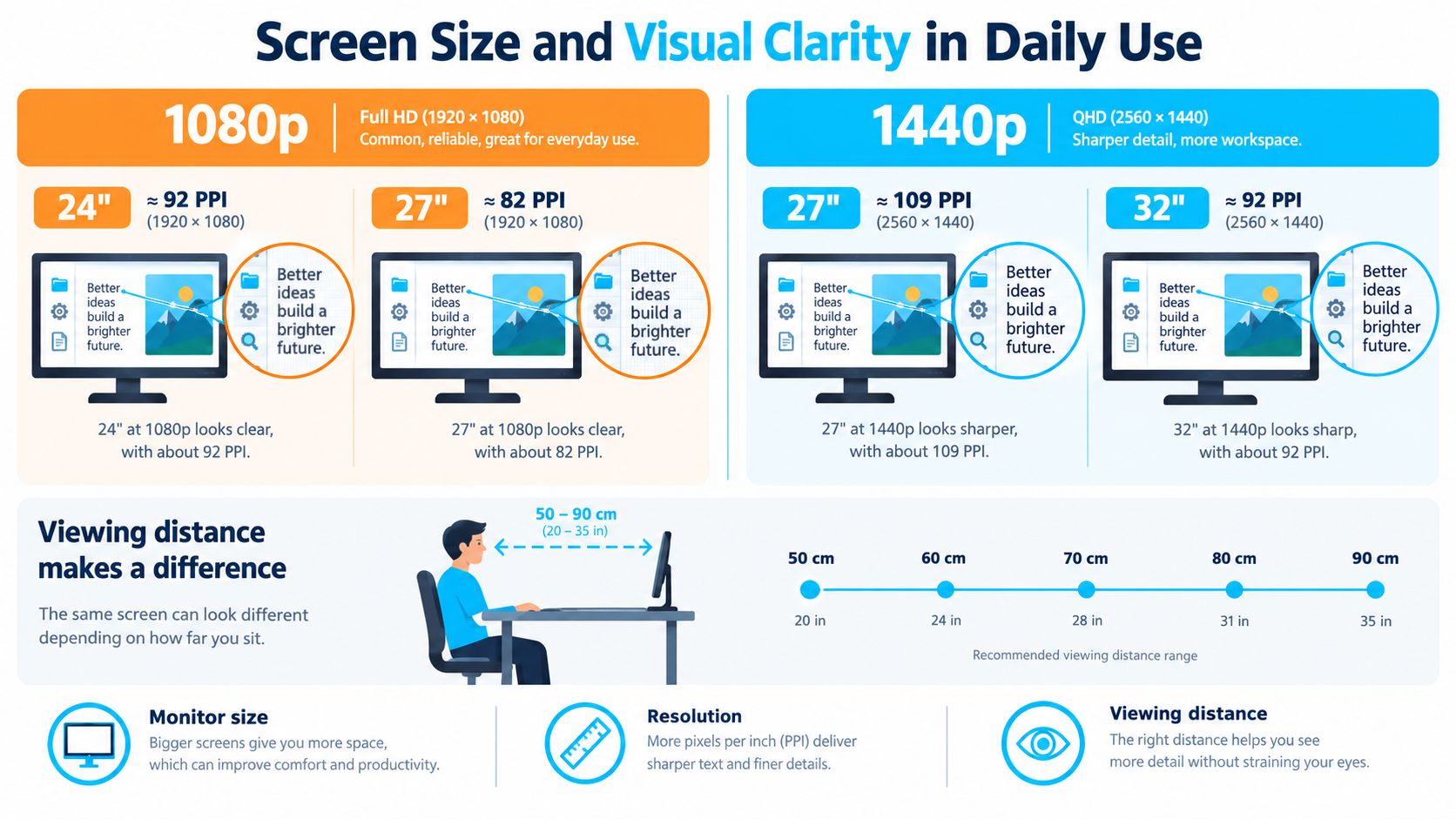
A 24-inch 1080p monitor and a 27-inch 1080p monitor share the same resolution, but they don't deliver the same visual experience. The smaller panel packs the pixels more tightly, so text and interface elements generally look cleaner at a normal desk distance. The larger panel spreads those pixels across more screen area, which can make fine text and thin lines look less refined.
That's why 24-inch Full HD remains a practical budget format, especially for competitive gaming where a player may prioritise speed, price, and an easy-to-scan screen. At 27 inches, QHD is the stronger everyday pairing. Best Buy Canada's gaming monitor catalogue reflects this pattern, with 24-inch Full HD models and 27-inch QHD models positioned as different buying tiers.
Match the panel to your desk
Condo desks create a constraint that product listings rarely address. A larger display may fit on the desktop, but that doesn't mean it fits your viewing distance. If the screen sits close to your face, a 27-inch panel can feel dominant, especially when you're reading documents or moving quickly between windows. A monitor arm can free up depth, but it also changes the screen's position and may require a sturdy rear edge.
For a compact workstation, use this pairing:
- 24-inch 1080p: Best for a secondary display, a student setup, or competitive games where you want the whole image within a compact field of view.
- 27-inch 1440p: Best for a single-screen office, mixed work and gaming, and side-by-side applications.
- Larger 1440p displays: Useful when document space matters more than a minimal footprint, but they demand more careful desk planning.
The Celmin home-office monitor guide is useful when resolution is only one part of the decision. A good office setup also needs height adjustment, sensible connectivity, comfortable brightness, and a stand or arm that works in the available space.
For a visual demonstration of how resolution and screen size affect everyday use, this video provides another perspective:
GPU Performance and Gaming Frame Rates
A 1440p upgrade can turn a comfortable gaming PC into a GPU replacement project. The graphics card renders substantially more pixels per frame, so the monitor and computer should be priced as one decision. If your current card already approaches its limit at 1080p, QHD can force lower settings or a reduced frame rate.
The comparison is clear without a flagship card. In the relevant FPSBench benchmark comparison, the RTX 5060 was 24% faster than the Arc B580 at 1080p, compared with 17% faster at 1440p. The gap narrows at 1440p because both cards are pushed closer to their limits, so the cheaper card loses less ground at the higher resolution.
The refresh-rate trap
A high-refresh 1440p display earns its cost only when the GPU can produce enough frames to use it. The same test suite shows older mid-range cards exceeding 300 FPS in esports titles at 1080p, while 165 Hz at 1440p suits cards with real headroom.
For portable options that pair well with a mid-range card, see this portable gaming monitor guide. A smaller display can also make sense when a condo desk leaves little room for a deeper viewing distance.
Choose the resolution around the frame rate you will sustain:
- Competitive players: 1080p keeps rendering demand lower, giving the GPU more room to chase very high frame rates. A 24-inch panel also keeps the image compact and easy to scan.
- Mixed and visually demanding players: 1440p delivers a sharper image and more workspace, but the GPU must maintain the refresh rate you paid for.
- Players planning a GPU replacement: Buy the monitor for the card you expect to use next, but budget for that replacement during the same purchase cycle. A winter sale can lower the panel price while leaving the GPU upgrade as the larger Canadian-dollar expense.
Older games and esports titles may run smoothly at 1440p. Newer demanding games can still require lower settings, especially after accounting for the cost of replacing a mid-range card sooner than planned. If responsiveness matters more than image detail, 1080p is the correct performance target, not a fallback.
A monitor upgrade can expose a GPU upgrade. Price the display, computer, and replacement cycle together.
Matching Resolution to Your Primary Use Case
The best resolution changes with the job. A person working in a compact condo office has different priorities from a competitive player or a designer who keeps several panels open at once. The useful question isn't “Which resolution is better?” It's “Which limitation bothers me every day?”
One screen for work, streaming, and general use
Choose 27-inch 1440p for a single display that must handle spreadsheets, browser tabs, video, and games. The additional pixels make side-by-side windows more practical and keep text from feeling cramped. The screen becomes a general workspace rather than a large version of a basic Full HD panel.
Desk depth still matters. If your workstation is shallow, a 24-inch 1080p display may be more comfortable than a larger QHD screen pushed too close. You can also consider a 27-inch QHD model on an arm, provided the desk can safely support it.
Competitive gaming
Competitive players should start with frame rate and viewing comfort, not resolution prestige. 24-inch 1080p remains the direct recommendation when every performance margin matters, your GPU is modest, or you prefer a compact screen. Spend the savings on a fast panel, a reliable stand, or a graphics upgrade instead of buying pixels you won't value during play.
Creative and multi-window work
For editing, design, coding, and research, 1440p usually earns its premium more easily. The workspace benefit reduces the need to constantly switch windows, while sharper text helps dense interfaces feel less tiring. It won't replace a professionally calibrated display when colour accuracy is the priority, but resolution can improve the basic working experience.
MacBook users should consider connectivity alongside pixels. A USB-C monitor guide for MacBook setups can help identify whether one-cable video, charging, and peripheral support matter more than a small resolution difference.
Shared family setups
A household monitor needs to survive changing uses. One person may browse and study, another may play games, and someone else may stream content. In that situation, 27-inch 1440p is the stronger long-term choice if the desk and GPU support it. For a second screen, children's workstation, or basic family computer, 24-inch 1080p keeps the cost and physical footprint under control.
Navigating Canadian Pricing and Hardware Costs
A 1440p upgrade can cost more than the monitor on your invoice. Best Buy Canada's standard monitor listings show 296 standard 2560×1440 monitors versus 862 Full HD monitors, giving 1080p buyers more selection and more opportunities for discounts.
The retail bands are distinct. Best Buy Canada's gaming-monitor listings place most 1440p models between CA$250 and CA$450 and most 1080p models between CA$200 and CA$320, with sale pricing pushing 24- to 27-inch Full HD panels into the CA$180 to CA$250 range. Canadian monitor market coverage also reflects the stronger value available in the Full HD category.
Estimated Canadian Setup Costs
| Resolution | Monitor Price CAD | Recommended GPU tier | Best for |
|---|---|---|---|
| 1080p | CA$180 to CA$320 | Existing entry-level or mid-range hardware | Competitive gaming, students, secondary screens |
| 1440p | CA$250 to CA$450 | Mid-range hardware with suitable headroom | Home offices, mixed gaming, general-purpose use |
These tiers do not assign a specific GPU model because results depend on the game, settings, refresh target, and the rest of the system. A monitor's advertised refresh rate does not guarantee that your PC can sustain it.
The hidden cost of the upgrade
The larger expense may arrive during the next GPU replacement cycle. If 1440p lowers frame rates enough to affect play, you may replace a graphics card earlier than planned. That purchase can exceed the monitor-price difference, particularly when your current card was chosen for 1080p gaming.
Desk space creates another Canadian upgrade cost, especially for condo dwellers. A 27-inch 1440p monitor needs more depth and viewing distance than a compact 24-inch setup. A monitor arm or a deeper desk may be necessary, and those changes belong in the budget.
Winter promotions change the calculation. Black Friday and Boxing Day can make Full HD especially attractive because the category has broad selection and strong entry-level competition. QHD sales can still make sense, but do not treat a discounted panel as the complete upgrade. Budget for the GPU, monitor arm, cables if needed, and any desk changes.
When to Stick With 1080p for the Long Term
A 24-inch Full HD monitor still makes sense for a compact condo desk, an older gaming PC, or a setup where frame rate matters more than extra workspace. Statcounter's Canadian desktop dataset (statcounter.com) puts 1920×1080 at 13.84% in August 2026. That installed base is why 24-inch Full HD panels keep getting refreshed with better panels and adaptive sync rather than being cleared out.
Keep 1080p when your current display works and the upgrade does not solve a specific problem. Higher resolution looks sharper, but it does not automatically improve competitive results, office productivity, or gaming enjoyment.
Use this decision matrix
| Your situation | Recommendation | Reason |
|---|---|---|
| You play competitive esports titles | 24-inch 1080p | Lower GPU demand and compact viewing area |
| You need a cheap second screen | 1080p | Keeps the physical and financial footprint down |
| You have a shallow condo desk | 24-inch 1080p | Easier to position comfortably |
| You use an older or modest GPU | 1080p | Reduces pressure on the graphics card |
| You run spreadsheets and documents all day | 27-inch 1440p | More workspace and cleaner text |
| You want one monitor for work and games | 27-inch 1440p | Stronger balance across mixed tasks |
Three reasons not to upgrade yet
Your GPU already sits near its limit. Moving to 1440p can require lower settings or an earlier graphics-card purchase. That cost can outweigh the monitor discount and shorten your current GPU's useful cycle.
Your desk is too shallow. A larger QHD panel may look better in a store, then feel uncomfortable at home because a condo workstation lacks enough depth for the required viewing distance.
You are waiting for a seasonal deal. Black Friday and Boxing Day can make 1080p the smarter purchase when the panel meets your needs. Keep the savings available for storage, memory, a monitor arm, or the next graphics card instead of treating a discounted QHD screen as the whole upgrade.
1080p also works well as a vertical side monitor. Text-heavy secondary tasks rarely justify QHD pricing when the primary display already handles detailed work.
Final Verdict and Buying Recommendations
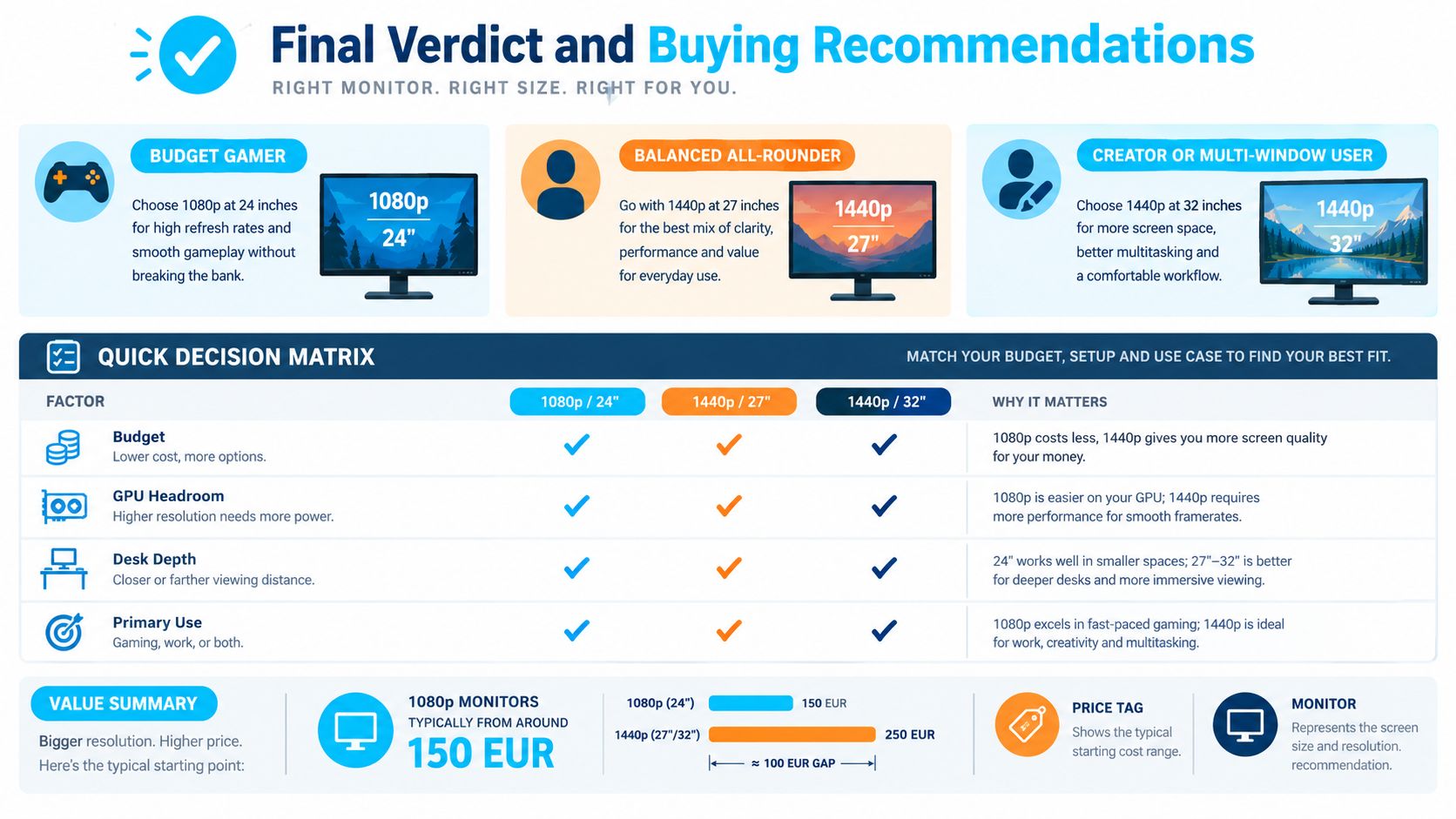
The 1080 vs 1440 decision doesn't need a vague “it depends” conclusion. Buy 1080p for performance-first gaming and constrained setups. Buy 1440p for a 27-inch all-rounder and serious everyday multitasking.
Start with the GPU. If your computer is designed around high frame rates at 1080p, keep that resolution and choose a responsive panel. If your hardware has comfortable headroom and you want a monitor that will remain useful for work, browsing, and games, choose 1440p.
Then measure the desk. A 27-inch QHD display is a strong general-purpose format, but it still needs sensible viewing distance. If your workstation is squeezed against a wall or shares space with a dining table, a smaller 24-inch Full HD model may deliver more comfort despite its lower resolution.
The direct buying guide
- Budget gamer: Buy 24-inch 1080p. Prioritise refresh rate and reliable adaptive sync over pixel density.
- Balanced all-rounder: Buy 27-inch 1440p. This is the strongest default for mixed Canadian home use when your GPU and desk can support it.
- Remote worker: Buy 27-inch 1440p if you keep multiple windows open. Choose a USB-C model if one-cable laptop connectivity matters.
- Creator or multi-window user: Choose a larger 1440p display only if your desk has the depth and your applications benefit from the extra canvas.
- Secondary-screen buyer: Buy 1080p unless the display will carry your main text-heavy workload.
The common assumption that every buyer must upgrade to 1440p is wrong. The equally common idea that Full HD is automatically a poor purchase is just as unhelpful. Resolution should serve the GPU, the desk, and the task.
For Canadian shoppers, compare the complete setup during Black Friday, Boxing Day, and other major sales, then check whether the discounted monitor still leaves room for the hardware and ergonomic changes it may require. If you're replacing a working 1080p display, upgrade only when you can name the problem that 1440p will fix.
Celmin publishes Canada-focused monitor buying guides and practical comparisons that help you weigh resolution, desk space, connectivity, and CAD pricing together. Visit Celmin before you buy so your next monitor matches the way you really work and play.
Sign up or sign in to join the conversation.