
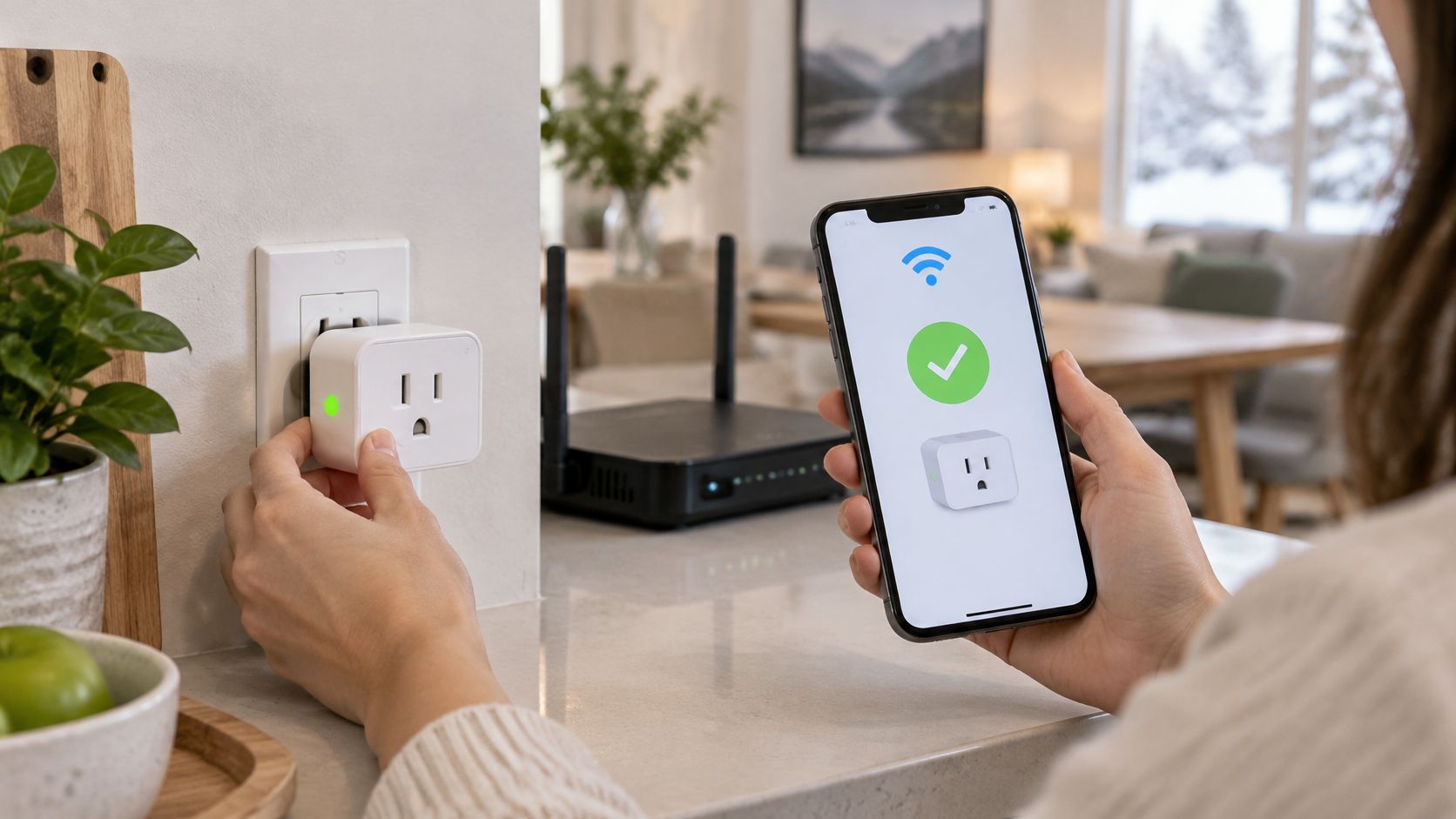
The smart plug has been sitting in its box because your phone can't find it, the router shows nothing useful, and another reset produces the same blinking light. You're not necessarily doing anything wrong. WiFi smart plug setup often comes down to whether the plug's basic wireless radio can join the network your router is offering.
Table of Contents
- What You Need Before Pairing Your First Plug
- Router Settings That Decide Whether a Plug Pairs
- Keeping the Plug on a Separate IoT Network
- Pairing a Wi-Fi Smart Plug in Eight Steps
- Troubleshooting Pairing Failures One Variable at a Time
- Canadian Vendor, App and Electrical Notes
- Test the Plug Before You Move It for Good
What You Need Before Pairing Your First Plug
Start with the network credentials, not the reset button. A plug can be ready to pair while your phone, app permissions or router settings prevent the introduction.
Statistics Canada reported that 94.0% of Canadians had Internet access at home in 2022, while 13.8% reported using smart plugs or smart lights. Having home Internet doesn't mean you've already dealt with device accounts, wireless bands or local-network permissions.
Prepare your pairing kit
- A nearby outlet: Use a sound, grounded outlet close to the router. Leave the appliance disconnected until the plug itself works.
- The correct app and account: Install the manufacturer's app named in the manual, such as Kasa Smart or Tapo, and complete email verification before starting.
- Router administrator access: Find the gateway's administrator credentials, which may be on its label or in your ISP's app. The administrator password isn't necessarily the Wi-Fi password.
- Your intended network credentials: Write down the network name and password exactly, including capitals. Decide whether this will be a dedicated IoT network before pairing.
- The model details: Photograph the plug's label so you can select the right device in the app. Record its firmware version once the app exposes it.
Check permissions and the load
Allow the app's requested local-network, nearby-device or Bluetooth access when those permissions support discovery. Location permission may also be needed for Wi-Fi scanning on some phones; that doesn't mean every optional permission is necessary.
Check the plug's electrical rating against the appliance's label and load type. A motor, heater and lamp aren't interchangeable loads, even when their stated consumption looks acceptable. Don't assume a plug suitable for a lamp is suitable for a space heater.
Router Settings That Decide Whether a Plug Pairs
A modern gateway can offer security and automatic wireless management that a basic plug doesn't understand. Faster Internet won't fix that mismatch.
Statistics Canada's high-speed Internet indicator shows that 97.1% of Canadian households had access to service meeting the 50 Mbps download and 10 Mbps upload benchmark in 2024. That measures service availability, not the quality of the wireless connection at your outlet.
Start by checking the plug's supported band and security mode. Temporarily pause band steering or separate the wireless names if discovery fails, then check whether the network requires a security mode the plug lacks. If the manufacturer offers access-point pairing, try it before repeatedly resetting everything.
Access-point mode lets the phone connect directly to the plug's temporary network to deliver your home credentials. It doesn't make an incompatible router security mode compatible.
Router settings that block pairing
| Router setting | Change before pairing | Symptom if left on |
|---|---|---|
| Band steering on one shared name | Pause it or split the 2.4 GHz and 5 GHz names | Plug never appears in the app |
| WPA3-only security | Switch the compatible IoT network to WPA2 or WPA2/WPA3 transition mode | Plug rejects the password despite correct credentials |
| Hidden SSID | Broadcast the network name during setup | Plug cannot find the network |
| Captive portal or login page | Use a network without a browser login page | Plug connects but never goes online |
| Mesh nodes with the same name | Keep a node offering the supported band near the plug | Plug joins a weak, distant node and drops |
| ISP gateway with combined bands | Log in and match or separate band credentials | Setup targets an incompatible band or times out |
These are diagnostic clues, not proof of a particular fault. A plug that sees the network but fails immediately after credential entry may have an authentication problem; one that works beside the router but drops at its final outlet suggests coverage.
Make temporary changes reversible
Photograph the original settings before editing them. Restore normal wireless features after pairing, provided the plug remains connected, and don't restore an incompatible security mode on its network.
In a condo, a less-congested channel can help when neighbouring networks crowd the available airtime. Our guide to router settings for reliable home Internet helps distinguish useful adjustments from unnecessary changes.
Renters without administrator access should ask whoever manages the gateway for a compatible network. A fallback pairing mode can simplify onboarding, but it can't bypass the building's network restrictions.
Keeping the Plug on a Separate IoT Network
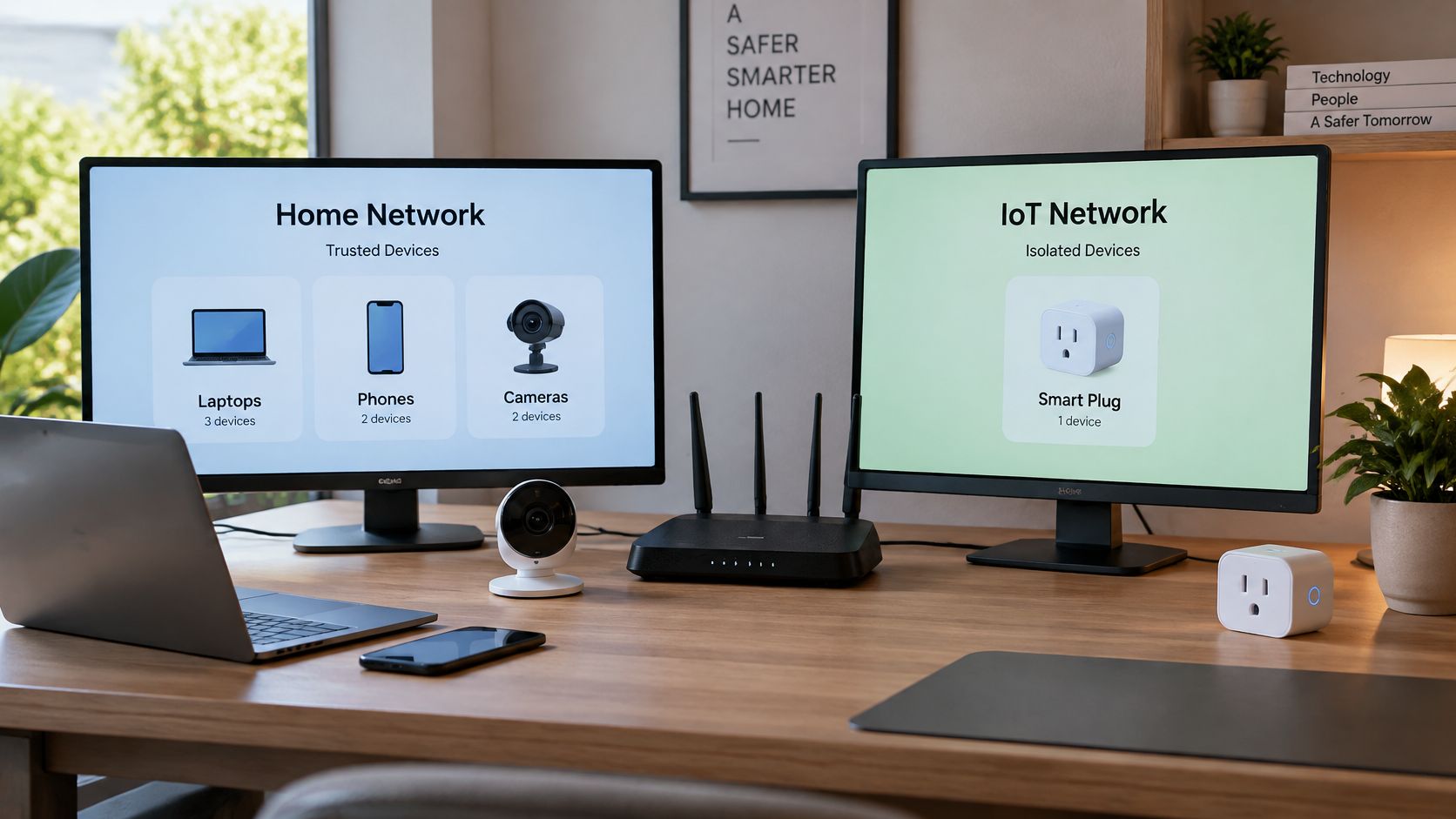
A compromised plug shouldn't have an easy route to your laptop, work files or cameras. Put the network boundary in place before you hand the plug your wireless password.
The Canadian Centre for Cyber Security's Wi-Fi security guidance recommends changing default router credentials, keeping firmware current, using WPA2 or WPA3 encryption, and separating IoT devices from sensitive equipment. Its guidance also warns that an attacker within radio range can brute-force WPS PIN authentication, so don't use WPS as a pairing shortcut.
The useful distinction is between sharing an Internet connection and sharing access to everything inside your home.
Minimum safe setup
- Update the router firmware before adding devices, so you aren't building around known software weaknesses.
- Replace default administrator and wireless passwords with unique passphrases. Keep router administration separate from everyday Wi-Fi access.
- Create a guest or IoT network with a security mode the plug supports. Prefer a compatible dedicated network over weakening protection for every household device.
- Enable isolation where appropriate to restrict access between devices and your primary network.
- Pair to that network rather than your laptop's usual network, so the intended boundary applies.
- Verify the controls you need before relying on schedules, remote switching or a hub.
Isolation has an interoperability cost
A guest-network label doesn't guarantee complete separation, and it isn't automatically equivalent to a properly configured VLAN. Look for controls governing access to the main network and communication between wireless clients.
Client isolation can stop a phone or hub from discovering the plug locally. Cloud control might still work, leaving you with a device that responds in its own app but disappears from a local smart-home system.
Security trade-off: Keep isolation enabled when your required controls work with it. If local discovery is essential, configure deliberate access rather than removing every boundary.
After pairing, update the plug's firmware and disable unused remote-administration or voice features. Before returning or selling it, remove account associations, perform its factory reset and confirm it no longer appears in your app. Also check whether its useful functions survive a vendor cloud shutdown.
Pairing a Wi-Fi Smart Plug in Eight Steps
Keep the first connection controlled. Rogers' Wi-Fi guidance identifies 2.4 GHz as the longer-range, better wall-penetrating band and notes that some devices can't see or connect to 5 GHz networks.
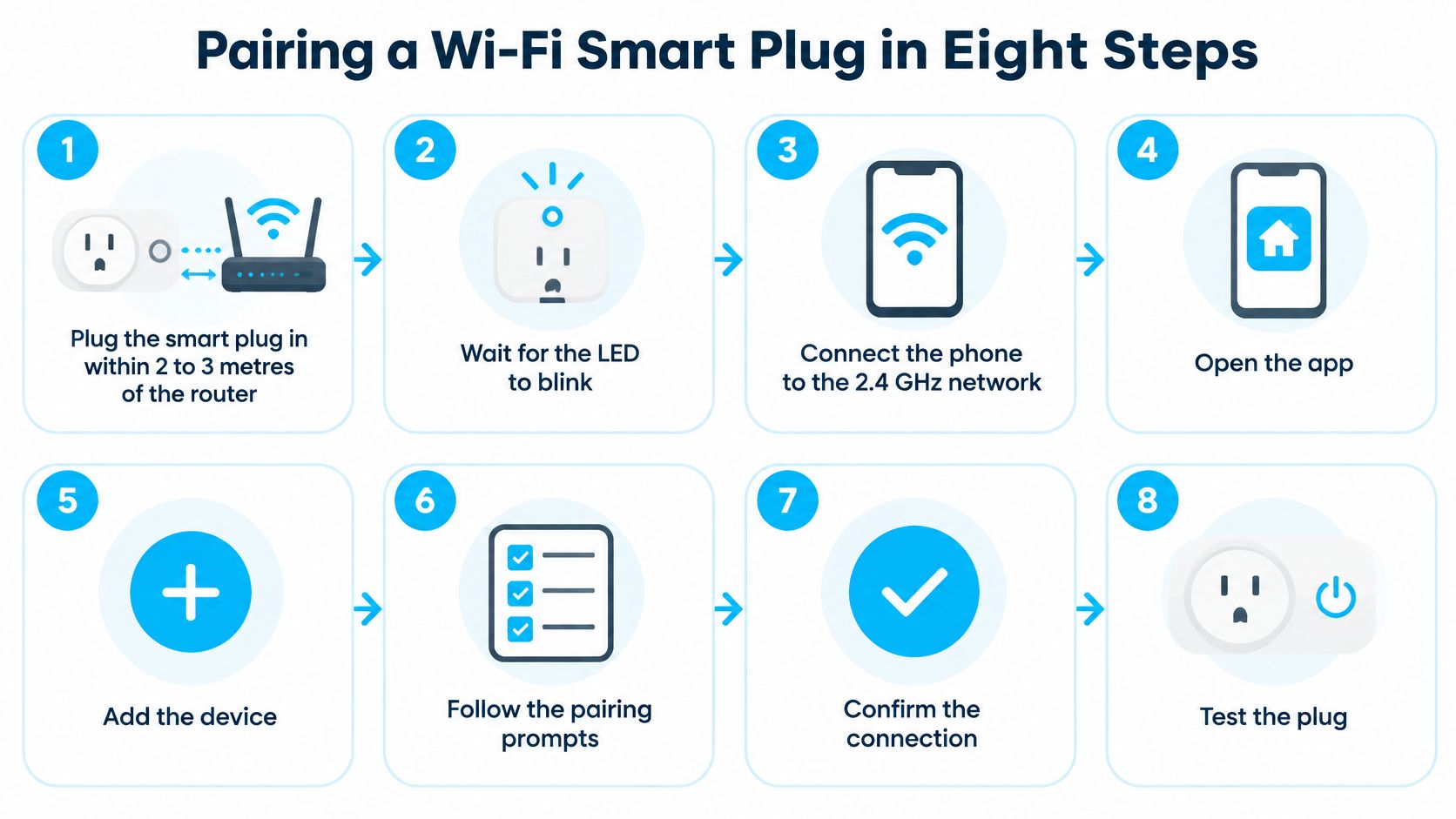
Use this visual as a quick reference while keeping the manufacturer's model-specific instructions open.
Make the first connection
Power the plug beside the router so weak coverage isn't part of the first test. Check that the indicator illuminates before opening the app.
Connect your phone to the prepared IoT network using the plug's supported wireless band, so the app can provision the intended connection. Temporarily disable mobile data and any VPN to prevent traffic taking an unexpected route.
Check the gateway's combined-band setting and pause steering or separate names if onboarding requires it. This removes ambiguity during setup without assuming every shared-name network is faulty.
Put the plug into pairing mode using the reset procedure for its exact model, because an ordinary power cycle may not start discovery. Match the indicator's colour and blink pattern to the manual rather than guessing.
Open the app and add the exact device model so it uses the appropriate discovery method. If prompted to join the plug's temporary Wi-Fi network, stay connected despite the expected no-Internet warning.
Select the intended network and enter its password carefully, because credentials are case-sensitive. Don't enter the gateway administrator password or accidentally select a neighbour's similarly named network.
Name the plug and test switching beside the router to confirm that onboarding completed. Use a harmless load such as a table lamp, and verify that the lamp changes state rather than trusting the app's icon alone.
Move the plug to its working outlet only after that successful test, so any new failure points towards placement rather than initial provisioning. Keep the same network credentials and run the final reliability checks before adding an important schedule.
Pair near the router, on the supported band, then relocate. Don't troubleshoot distance and credentials at the same time.
Troubleshooting Pairing Failures One Variable at a Time
A connection failure after password entry is a useful place to start: check the credentials before changing the router. An extra space from copying, a mistaken capital or the wrong saved network can produce an error that looks like a hardware fault.
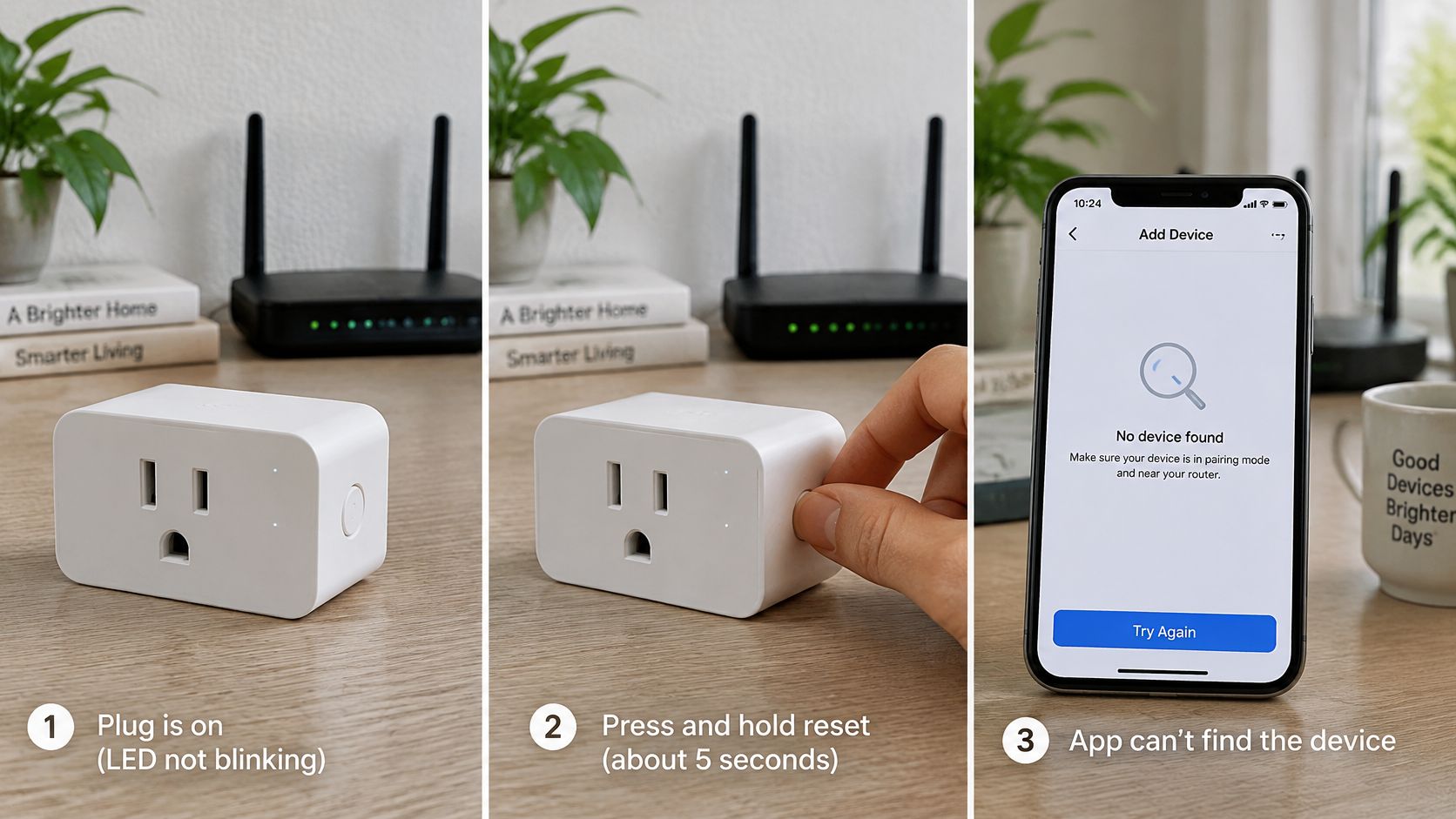
Use the symptom to choose the next test, rather than running another full reset without changing anything.
Pairing symptoms and first fixes
| Symptom | Likely cause | First fix |
|---|---|---|
| LED never blinks | Plug unpowered or reset too short | Check the outlet, then hold reset until the LED changes |
| App finds no device | Phone on an unsuitable band or VPN active | Select the supported network; if already correct, disable the VPN |
| Connection fails after password | Typo, misread character or weak signal | Retype the password; test closer placement separately |
| Pairs but goes offline later | Marginal signal or an address-assignment problem after a reboot | Test closer placement first; investigate a DHCP reservation if coverage is sound |
| Works only on home Wi-Fi | Remote access or account not set up | Check remote-control settings and the vendor account |
A changing DHCP address is normal and shouldn't ordinarily break a well-behaved plug. Reserve an address through the router only when you're investigating a genuine addressing problem, not as a universal cure for disconnections.
Likewise, a home-Wi-Fi-only success doesn't prove the plug relies on cloud control. It tells you local switching works while the remote path needs attention.
Separate discovery from network rejection
If the app never sees the plug, inspect phone permissions and pairing mode first. If the router lists the plug as connected but the app can't finish, investigate discovery restrictions, Internet access and account registration instead.
For a visual walkthrough, compare the sequence with your own app, but follow your model's reset instructions.
Keep a short note of each change and its result. Restore unsuccessful changes before testing another, especially when editing security settings.
At Celmin, we name product trade-offs, including smart plugs that need a patient router. Some are fussy, but repeated failures don't prove the router is defective; a faulty plug, unsupported model or app problem can look similar.
Stop resetting blindly: A controlled attempt that changes one condition tells you more than repeated attempts with the same settings.
If compatible settings and close-range pairing still fail, test another supported network if available. That comparison helps decide whether to pursue router configuration or return the plug.
Canadian Vendor, App and Electrical Notes
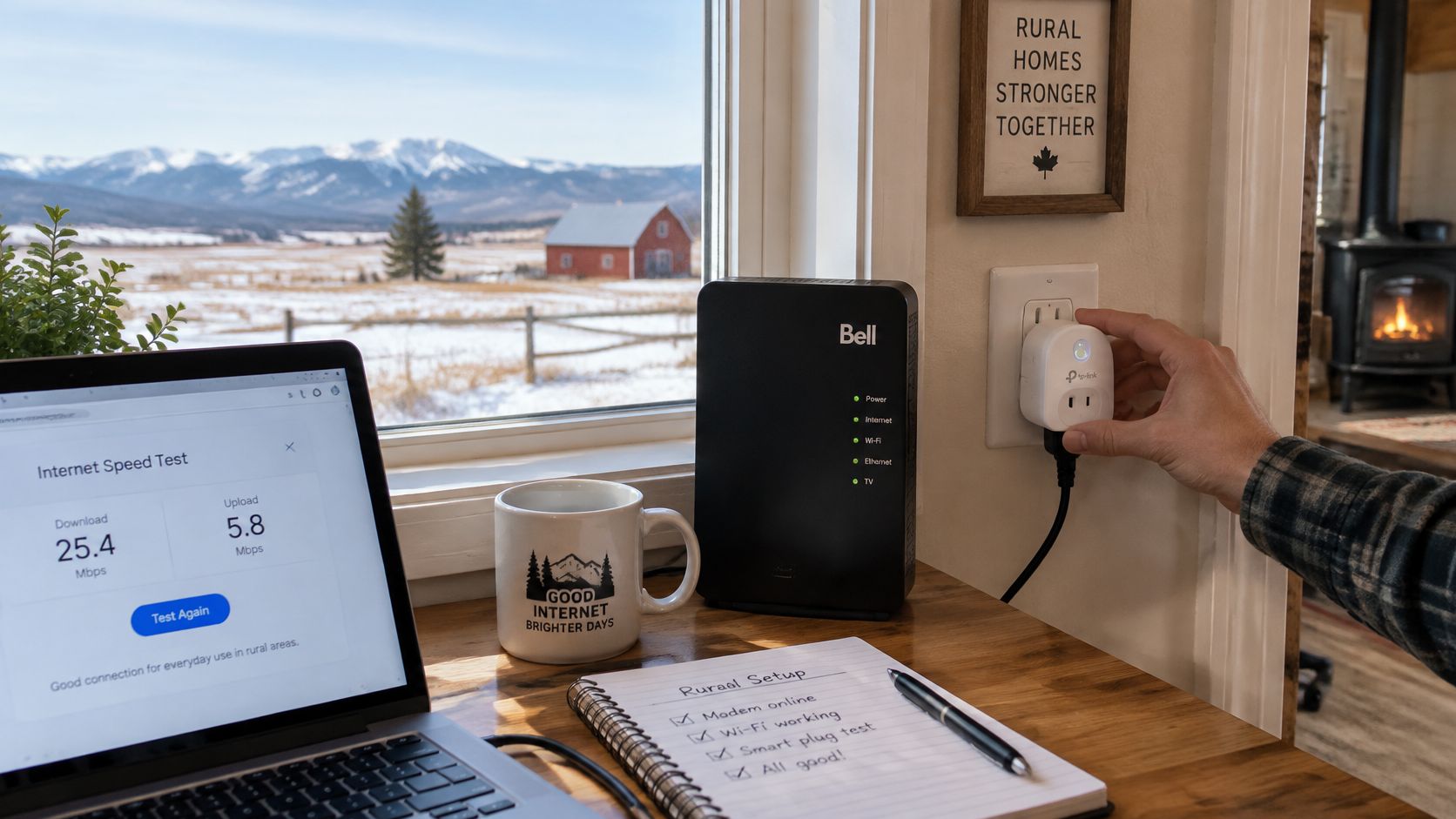
A rural home can have working Internet at the house and poor wireless coverage at a garage outlet. In a 2023 announcement, Innovation, Science and Economic Development Canada stated that 93.5% of Canadian households had access to high-speed Internet; that national availability measure doesn't establish coverage across an individual property.
Treat an outbuilding as a placement problem to test, not a location the plug will necessarily reach.
App region and Canadian purchasing checks
Choose the appropriate country or region when creating the account. Product availability, cloud services and firmware options can differ between regional versions, so confirm that the exact Canadian model appears in the app.
Check the household time zone separately. A plug can pair perfectly while running a schedule at the wrong local time.
- Compare the complete purchase: Look at CAD pricing, Canadian availability, warranty coverage and the retailer's return window.
- Check ecosystem support: Confirm compatibility for the exact model, not merely the brand. Our Canadian smart-home system guide helps with that broader choice.
- Keep identification handy: Save the receipt and label photo in case support needs the model or hardware revision.
Outlets, moisture and winter placement
Check for a tripped GFCI when a kitchen, bathroom or garage outlet appears dead. Don't bypass protection to keep a smart plug running, and don't use an indoor plug where moisture can reach it.
For a heater, check both manufacturers' instructions. An acceptable electrical rating alone doesn't override an appliance instruction requiring direct connection to a wall outlet.
An unheated porch or garage also needs a temperature-rated device. Test it under realistic conditions, and don't treat a lost connection as proof that cold is responsible when the outlet may also have marginal coverage.
Test the Plug Before You Move It for Good
The final outlet is where the setup earns your trust. Use a lamp or another low-consequence load, and watch the appliance rather than relying solely on an online indicator.
Run the reliability checks
- Test away-from-home control: Turn off phone Wi-Fi and switch the plug using mobile data. This checks the remote path rather than repeating a local test.
- Run a near-term schedule: Create an event you can observe and confirm that it fires at the intended local time. Use the smart plug timer guide to distinguish a countdown from a recurring schedule.
- Reboot the router: Wait for the network to recover and confirm the plug reconnects without another pairing session.
- Interrupt power to the plug: Unplug it briefly, reconnect it and check both network recovery and the appliance's resulting power state.
Decide what a failure means
Don't accept a simple majority of successful tests. A plug that fails recovery after a router reboot or power interruption isn't ready for unattended use, even if ordinary switching works.
If mobile-data control alone fails, investigate the vendor account and remote-access settings. If the plug loses contact only at the working outlet, improve coverage or choose a different location before buying more of the same model.
Also decide whether its power-restoration behaviour suits the load. A lamp unexpectedly turning on is inconvenient; other appliances can create a more serious problem.
Pair one plug, pass the checks that matter to its job, then add the next.
Celmin publishes practical smart-home reviews and setup guides that explain router compatibility and product compromises. If you're deciding what to add after your first plug, our Smart Home Starter quiz helps new users choose which devices to start with. Visit Celmin for guidance suited to Canadian homes.

Sign up or sign in to join the conversation.