
What a streaming box adds, when it makes sense to keep your TV, and how to check apps and connection options in Canada.
A perfectly good TV can be worth keeping even when its home screen is the slowest part of the evening. An Android TV box adds a separate player through HDMI. The box runs the apps, handles the network connection and sends picture and sound to the screen you already own. If you are reaching for a laptop every time you watch something, or an older set has lost an app you use, that small change can matter more than a new display.
The place to start is with the thing you want to watch. A box makes sense when it gives you a reliable way to get to that programme from the sofa. If your TV already does that, its built-in apps may be all you need. If the screen works but the path to your programme is awkward, an external player gives you another option.
What the box actually does
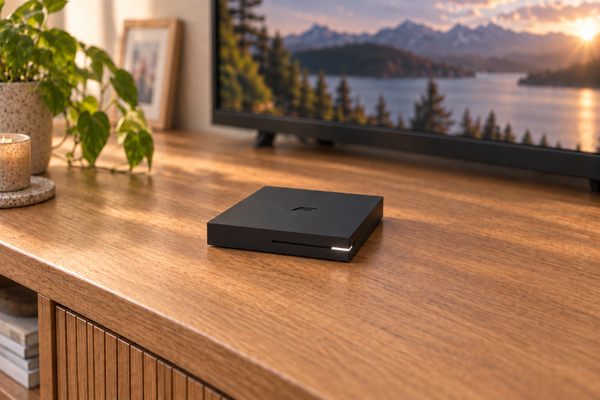
An Android TV box is a compact computer for the television. It connects to the internet through Wi-Fi or, on some models, an Ethernet cable. It runs the app that receives the picture, then sends that picture and sound to the TV over HDMI. A remote lets you navigate from the couch. This is why the TV's own software can be left alone. You select an HDMI input and work from the box's home screen.
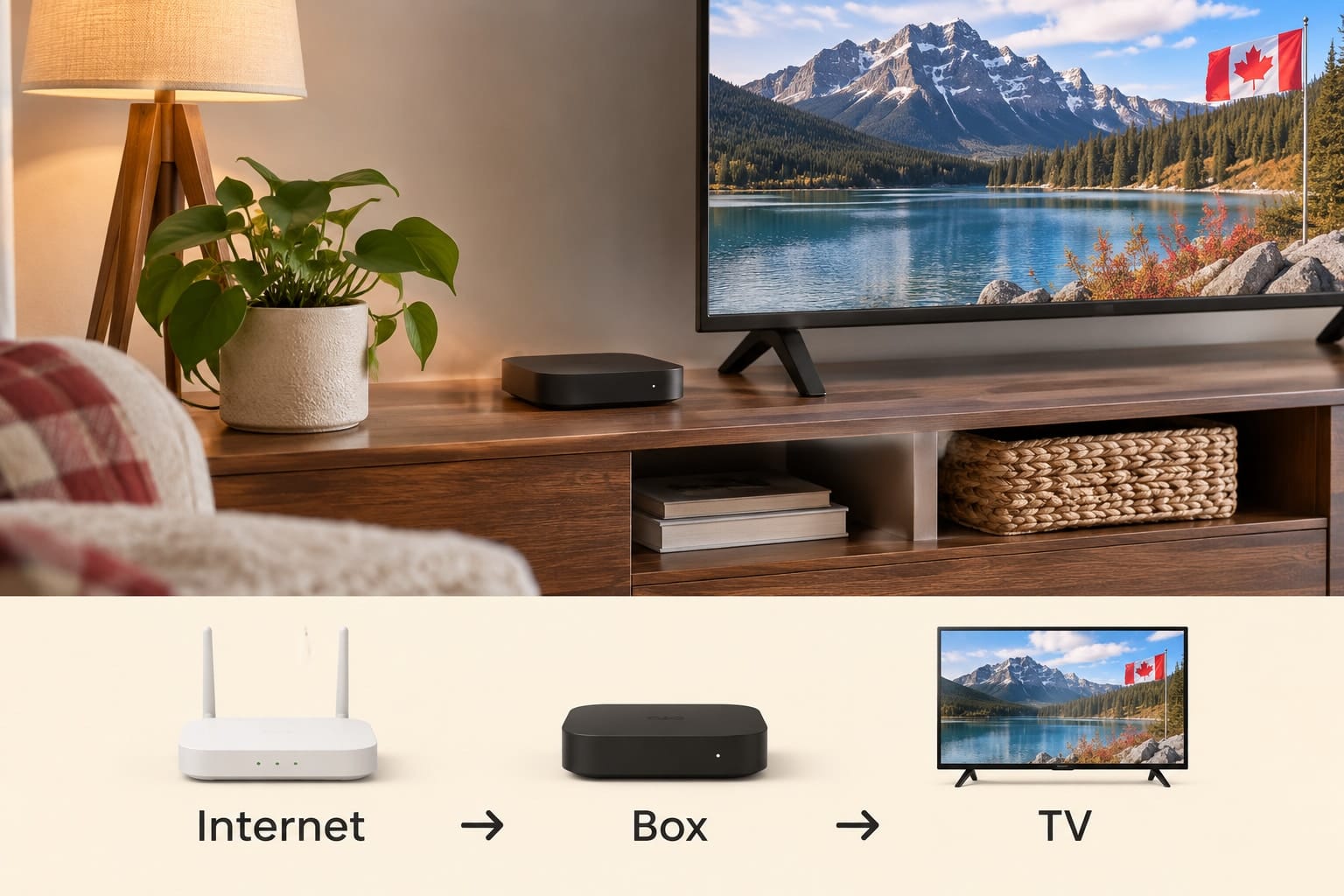
Think of it as a change to the player in the room. The screen still sets the limit on what you can see, and the speakers or sound system still affect what you hear. An external box cannot make a 1080p screen into a 4K one. It can, however, give an older 1080p screen a route to a supported app, or make an otherwise fine 4K set easier to use every day.
The other change is where the work happens. Updates, app sign-ins and the list of favourite services sit on the separate player. In a shared room, that can make it easier to keep the same viewing setup if the television changes. If the box itself ages out of support, it can be replaced on its own. Check account transfer rules and backup options if you depend on favourites or saved settings.
See how an Android TV box connects
Why the names on a listing matter
“Android box” is a broad phrase. It can describe a device running a version of Android with a vendor's own software, or a device running Android TV OS with an interface built for television. Google TV is an experience on top of Android TV OS. Google explains the distinction here. Two products sold under similar names can offer different app stores, navigation and update paths.
Read a listing with your own shortlist of apps in front of you. Check whether the exact device runs the Canadian version of each app and whether its controls work with a conventional remote. A phone app designed for tapping can be a poor fit on a television if it expects a touchscreen or assumes you are sitting close. The name of the operating system tells you less about the evening than whether you can open your service and move through it comfortably.
Certification and app support are questions you can check separately. If a product advertises Android TV OS, confirm the manufacturer and model against Google's guidance on Play Protect certification. Then confirm the service-specific requirements. A certified device can still have a different app lineup or playback quality from another certified device. Check both before choosing a model for one particular service.
The device and your viewing service are separate
Buying a box normally pays for the hardware and included software. Access to live channels, paid films or subscription shows depends on the apps and accounts you use. Your existing subscription may already be enough if the provider supports the device. If you want a channel guide and live TV, ask the provider how it works on this exact player and whether the account can be used on another screen.
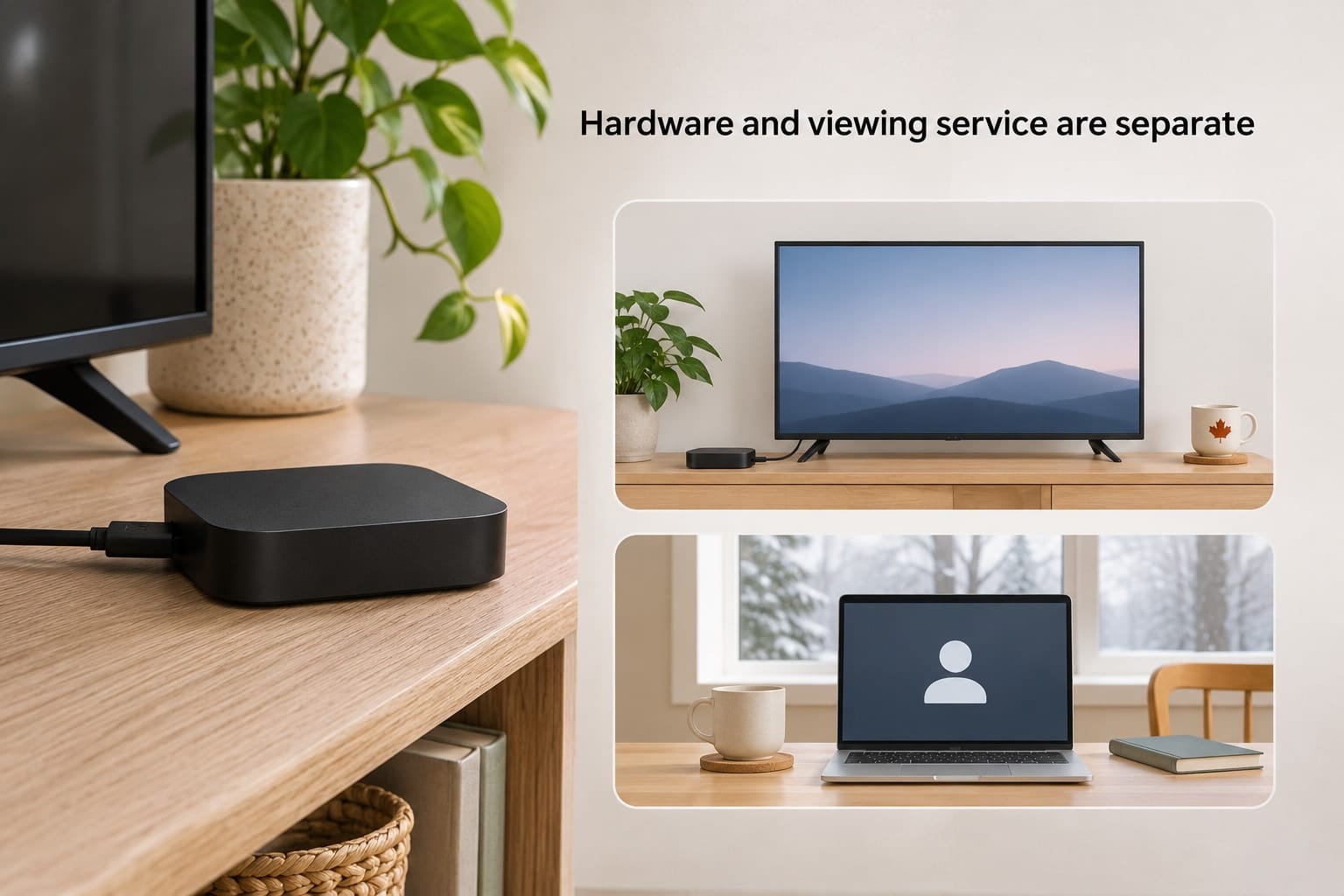
There are a few common setups. One household opens on-demand apps and switches between them as needed. Another keeps a cable or internet TV subscription and uses an app or compatible guide to watch allowed channels. A third watches its own media files from a drive or a home server. The three households can end up with very different boxes because their starting points are different.
For a Formuler-style setup, the built-in viewing software organizes a compatible service. Formuler's connection guide explains where service details come from. It helps to ask whether the features you value, such as a familiar channel guide or a recording option, work with the subscription you already have. Read the service terms and use content you are authorized to access.
If a listing leans heavily on the number of channels it promises, ask who actually provides them, whether they are available in Canada and how billing and cancellation work. Check that you can get support for the service and for the hardware independently. A viewer with an existing account can often make a better decision by checking that specific fit than by comparing long channel counts.
Three situations where a box can earn its place
An older TV in a bedroom is a good starting point. It may have a decent picture and a spare HDMI input, but its app store stops short of the service the household uses today. A compact player and a nearby outlet can make the room useful again. Pay attention to whether the remote can handle power and volume from the bed, and whether Wi-Fi reaches the back of the screen, not just the doorway.
On a shared living-room TV, the pain can be navigation instead of missing apps. A useful upgrade gives people a predictable way to start. Ask the regular viewers what currently takes too many steps. A remote with a sensible home button or an interface that makes favourite channels easier to reach can be a better reason to buy than a speed claim that never changes what people do. Keep the old remote available for TV inputs and audio controls during setup.
A third use is a wired home media setup. If you want to play files from a home server or attach supported local storage, connections matter. Look for the ports you intend to use, supported apps and file formats, and the space to leave a drive attached. A wired connection can be easier to diagnose when playback falters. The file, playback app and TV or sound system still need to work together.
Check the room before placing an order
Start with the HDMI ports on the actual television. A free port that faces sideways can be easier to reach on a wall-mounted set. A port that faces the wall might leave little room for a plug or bend. Set aside a reachable outlet and check the box's supplied power arrangement. A nearby TV USB port looks convenient, but only use it as the power source if the player documentation supports that setup.
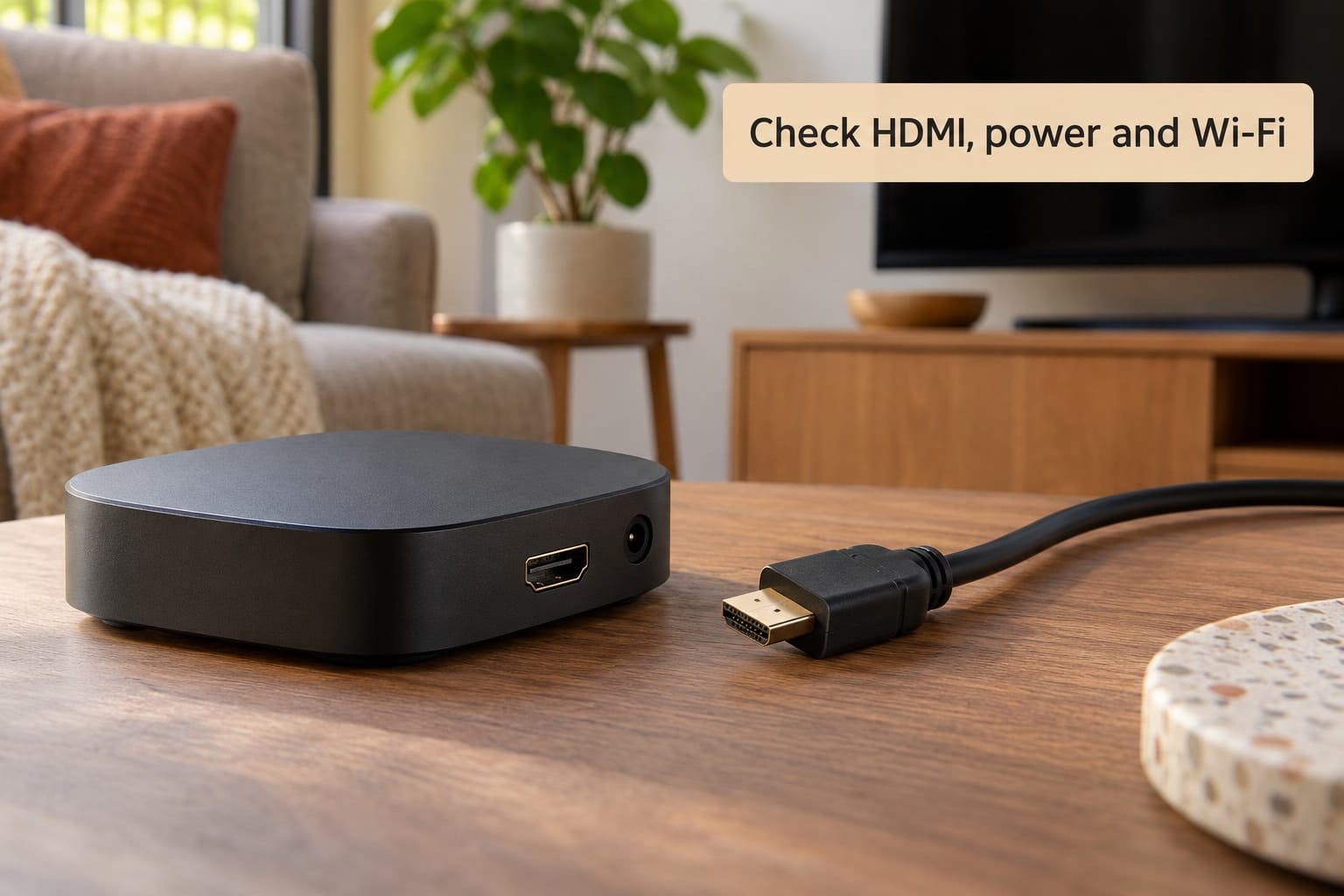
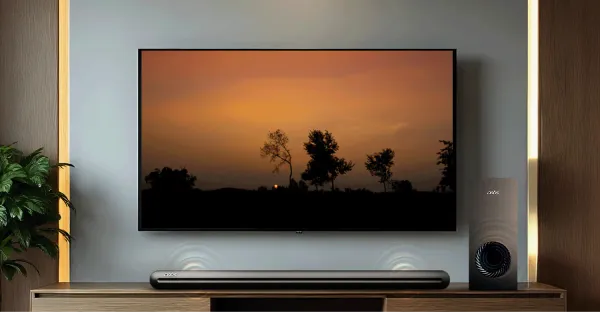
A receiver that is small on paper can need more room once the connections are in. Think about the cable run and what must remain accessible, including a USB socket you plan to use. Leave air around the box. If it will sit behind the TV or inside furniture, check how its remote communicates. Bluetooth can remove the need for a clear path to the receiver on a compatible setup, while TV power or volume commands can still rely on infrared.
Try the network from the planned spot. When Wi-Fi is the only option, a room that works for a phone can behave differently once the device is off to the side of a television or buried behind a cabinet. If Ethernet is available, run the cable in your head from wall jack to shelf. Confirm whether you need a compatible adapter, and include that in both the budget and the space plan. Avoid buying network hardware until you know what problem it solves.
Read a 4K claim as the start of the check
4K output describes a resolution the player can send. The source app, subscription, title, HDMI path and display determine what you actually receive. If the content goes through a receiver or soundbar first, include that equipment in the check. Netflix's video quality guidance is a useful example of how an individual service treats the whole setup.
This matters even if you have a 4K television in the main room. A newer streaming box may be a good purchase because it runs a particular service easily, while an older second TV may benefit most from reliability at 1080p. Pick an outcome you can see and verify on your own screen. If you care about HDR or surround sound, check the exact format with a known compatible programme once everything is connected.
Storage numbers need similar context. Advertised storage includes space the operating system and preinstalled software can use. An app can also download updates or keep data over time. If you want to record, look up where the exact model can save a file and confirm your service permits the recording. An external drive is useful only if the player and app can use it for the job you have in mind.
Make the first evening tell you something
Write down what you need before installing anything. A short list might be one streaming app, one live channel you can already access and a simple way to restore the right input after switching the TV off. Start with the TV, box and network. Add extra equipment after the basics work. If you eventually want a soundbar or media server in the setup, reconnect it and repeat the same programme so you can tell where a problem starts.
Test from where you actually sit. Open the services, change programmes, check volume and turn the TV off. Come back later and see whether everyone can start again without an instruction sheet. If you bought the box for a second room, try it at the busy time of day when people are watching elsewhere. Some services limit concurrent viewing, so repeat the check with both televisions active when that is part of your plan.
Before making the installation permanent, give the remote to the person who will have the least interest in the setup. A good outcome can be as ordinary as reopening the right app in a few steps. If playback already works but people keep picking the wrong input, fix that routine first. Changing the Wi-Fi or buying a bigger player will not address a remote-control problem.
When keeping the TV as it is makes more sense
If everyone can reach the programmes they watch using the existing remote, there is little reason to add another box. An app built into the television can spare you another outlet, cable and set of updates. Likewise, if the only issue is buffering at the same time on several devices, look at the home connection before buying a replacement player. That protects you from paying to recreate the same problem on the next HDMI input.
An external player earns its place by making a clear improvement. It can extend the useful life of a capable screen, add a compatible service or give a wired setup the ports it needs. Choose the job first. Match the app, network and remote to the room, then shop for the smallest device that does the whole job comfortably.

Sign up or sign in to join the conversation.