
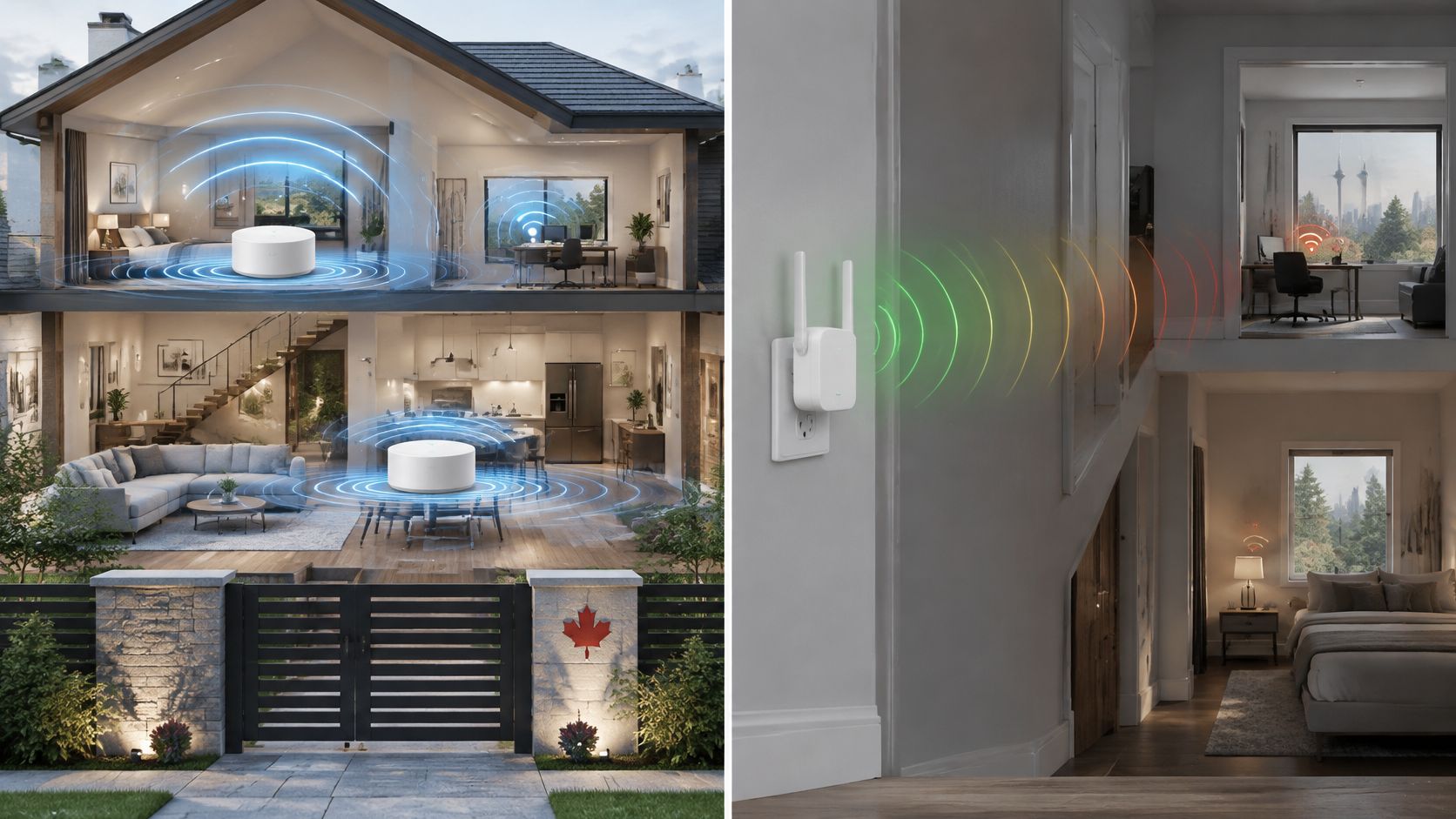
The usual advice to buy mesh for a big home and an extender for a small one misses the deciding factor: how the added device connects back to your gateway. A mesh kit with a poor wireless connection through concrete can disappoint just as badly as a cheap repeater. Buy mesh for a whole-home coverage problem, buy an extender for a contained weak spot, and don't replace a working ISP gateway without measuring it first.
Table of Contents
- Mesh Wifi vs Extender at a Glance
- Backhaul Throughput and Latency
- Canada 6 GHz Rules for Mesh Kits
- ISP Gateways Roaming and Wi-Fi 7
- Condos Houses and One Dead Room
- CAD Prices for Mesh and Extenders
- Choose Mesh or an Extender for Your Floor Plan
Mesh Wifi vs Extender at a Glance
Choose mesh when weak Wi-Fi affects several rooms or floors and you want coordinated coverage under one network name. Choose an extender when only one nearby area needs help and the proposed outlet still receives a strong router signal. Neither choice should start with the coverage number printed on the box.
| Criterion | Mesh Wi-Fi | Wi-Fi extender |
|---|---|---|
| Coverage job | Several rooms or floors under one network name | One weak area beside a still-strong signal |
| Loaded throughput | Stays closer to gateway performance with dedicated or Ethernet backhaul | Often drops substantially when the same channel carries traffic twice |
| Latency | Better controlled when backhaul doesn't share client airtime | More likely to rise during calls and downloads near the coverage edge |
| Roaming | Coordinated handoff on one SSID, subject to client behaviour | Separate SSIDs or clients clinging to a weaker connection are common |
| Backhaul choices | Dedicated radio, separate band, or Ethernet, according to model | Usually a wireless band also used by clients |
| Setup | App-guided nodes; mesh can run in access-point mode, or a compatible gateway can be bridged | Plug in and pair; gateway usually stays as-is |
| Best fit | Multi-floor houses and difficult condos needing broader coverage | A single dead corner in a small or open home |
This isn't a contest between good technology and bad technology. An extender is a targeted repair; mesh is a coordinated distribution system. Spending more makes sense only when you need what the larger system provides.
According to Statistics Canada's internet-use overview, 94.0% of Canadians aged 15 and older had access to the internet at home in 2022. For connected households, an unreliable bedroom connection can interrupt a laptop call, a streaming device, or a camera even while everything beside the gateway works normally.
Establish whether you need more coverage
Run a speed test beside the gateway, then repeat it in the seat where the connection fails. Use the same device and test service, disable its VPN temporarily, and pause background transfers so you're making a useful comparison.
If performance is poor beside the gateway, investigate that first. A wired test can help distinguish an incoming-service problem from a wireless problem. Neither mesh nor an extender increases your subscribed internet speed; they distribute the connection you already receive.
Before purchasing anything, try moving the gateway into the open, away from a television, shelving full of metal objects, or a utility cupboard. A more central position may remove the need for another device altogether.
Our mesh network versus router comparison helps separate a router-placement problem from a genuine need for distributed access points.
Buying rule: Pay for the coverage job you actually have, not the largest floor-area claim you can afford.
The table's performance advantages aren't guaranteed by a mesh label. Backhaul quality and the route through your walls determine whether those advantages survive in your home.
Backhaul Throughput and Latency
Backhaul is the path from the remote node or extender back to the gateway. Treat it as a separate connection that must work well before the far-room connection can work well.
A conventional extender receives traffic over Wi-Fi and retransmits it on the same channel. That means the same traffic needs airtime for both stages. When another device starts downloading, the extender has to compete for airtime while also forwarding traffic to its clients.
The distinction is easier to see as a traffic path.
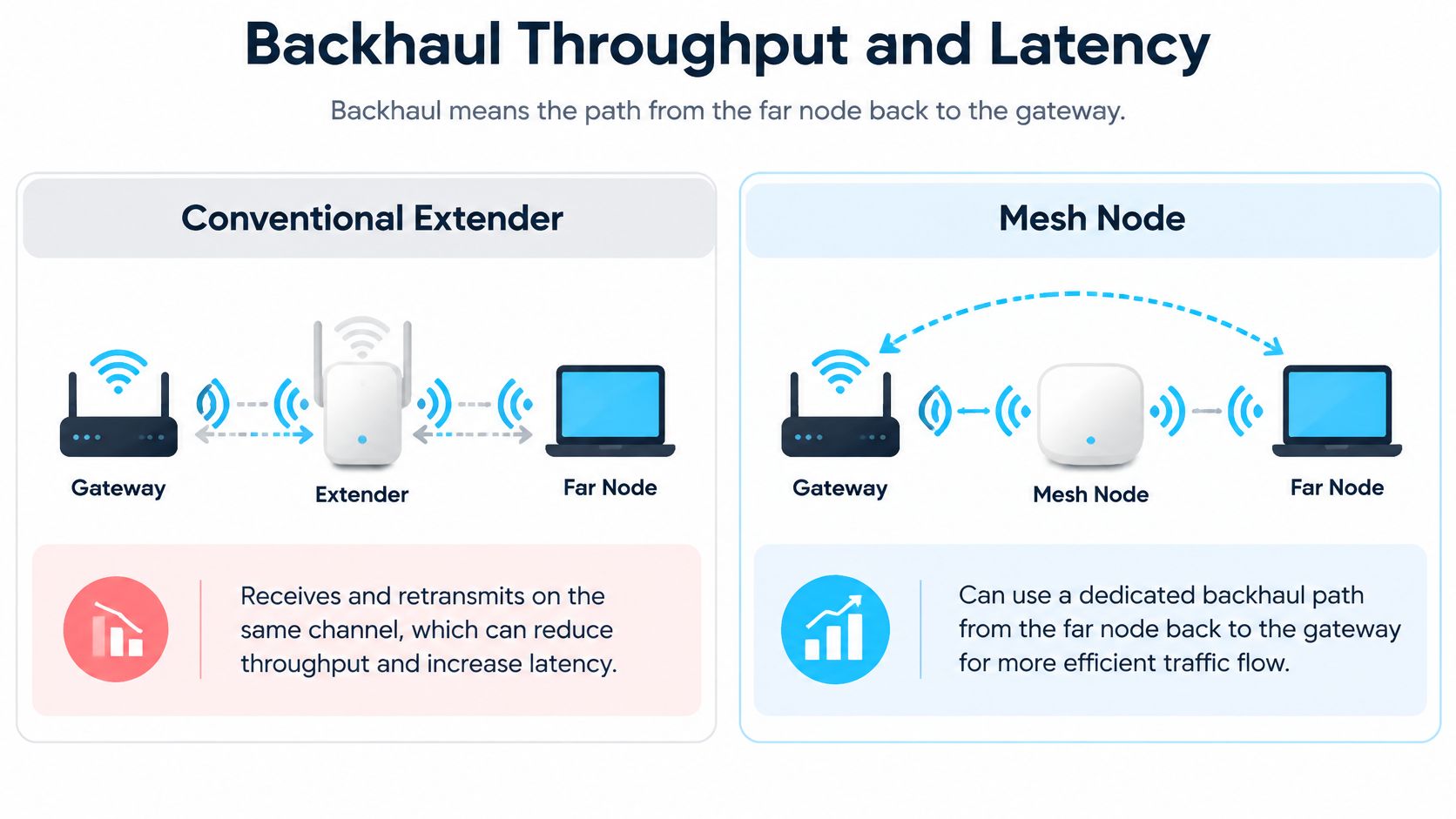
A mesh node can avoid that particular bottleneck through Ethernet or a dedicated wireless backhaul radio. But not every mesh kit has a dedicated path, and a separate band isn't automatically reserved exclusively for backhaul. Read the operating details rather than assuming that a tri-band badge guarantees isolation from client traffic.
Test the connection while someone else uses it
An idle speed test is useful, but it won't tell you whether an office call will remain usable during a household download. Use this test sequence:
- At the gateway: Establish the connection's baseline using your usual laptop or phone.
- Beside the relay: Check whether the node or extender has a usable upstream connection before blaming the far room.
- At the working position under load: Repeat the test while another device runs a sustained download or video call. Watch upload performance, latency, and interruptions, not just download speed.
Keep the test device and test location consistent. A laptop with a newer radio can give a different result from an older phone, even when both connect to the same node.
Advertised AX and AC rates aren't end-to-end room speeds. They describe wireless capabilities, not the usable internet throughput you'll receive after interference, forwarding, client limitations, and backhaul contention.
ISED's Spectrum Outlook describes Wi-Fi 6 capabilities including channels up to 160 MHz, but wider channels only help when compatible clients, channel conditions, and backhaul capacity support them.
Put the relay before the signal fails
Don't install an extender in the room where the gateway already disappears. Choose a location closer to the gateway, verify that its upstream connection is healthy, and then test whether it reaches the destination.
In a congested condo, Ethernet-backhaul mesh is the more consistent choice when running cable is possible. It removes the inter-node link from the shared wireless environment, although client devices still have to contend for their own wireless airtime.
Extra signal bars don't mean extra speed when the connection behind those bars is congested.
Canada 6 GHz Rules for Mesh Kits
Buy into 6 GHz for usable capacity, not miraculous reach. It can provide a cleaner path for compatible devices or mesh backhaul, but it won't make concrete walls disappear.
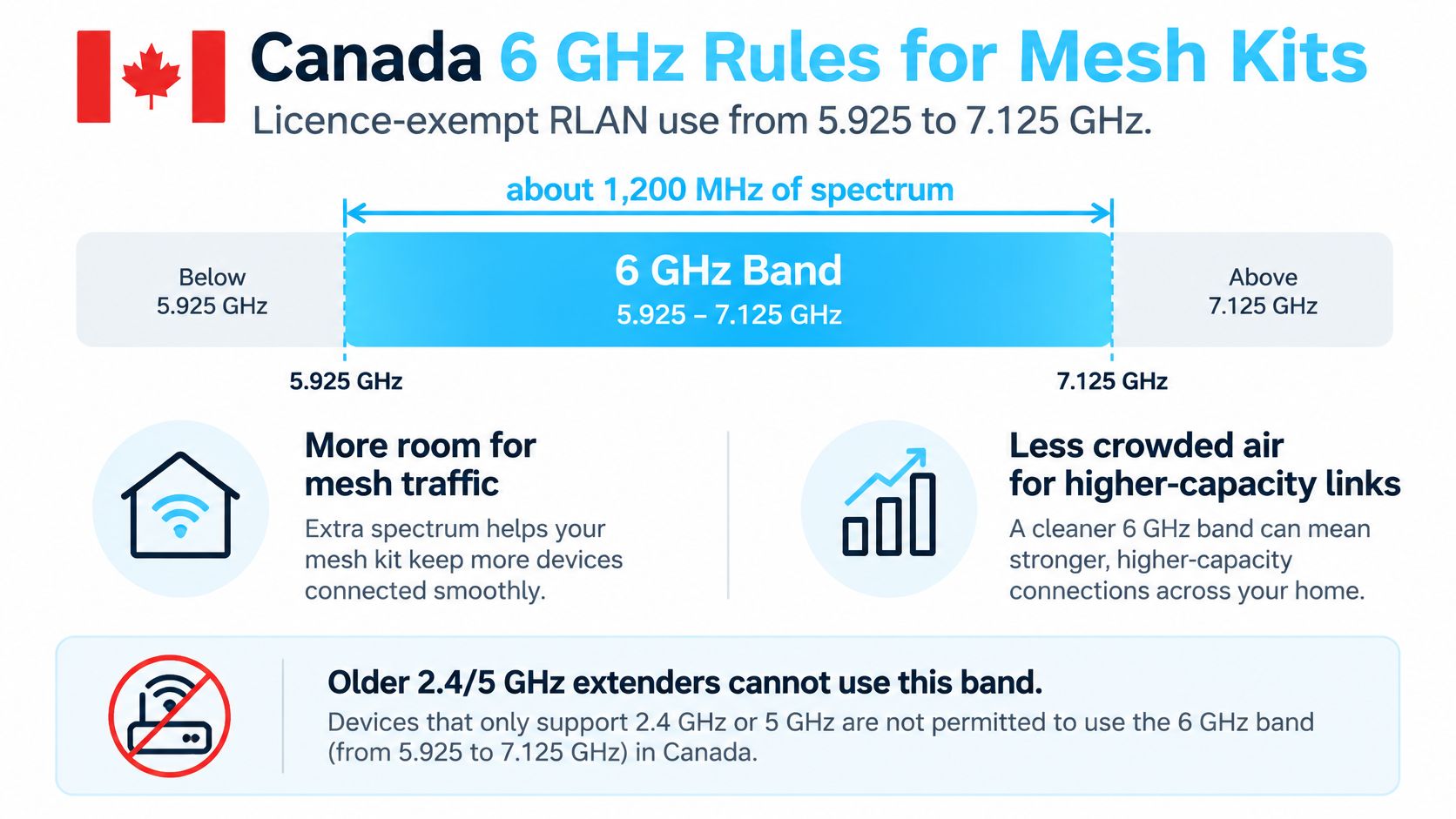
ISED's decision on licence-exempt use of the 6 GHz band permits RLAN operation from 5.925 to 7.125 GHz, providing 1,200 MHz of spectrum, with low-power indoor operation throughout the band and automated frequency coordination required for standard-power operation in part of it.
That additional spectrum is useful when neighbouring networks crowd the older bands. A suitable mesh system can use it for inter-node traffic, while compatible phones and laptops can use it for their own connections. Older extenders limited to the traditional bands can't access that additional airspace.
The Canadian spectrum framework is summarised below.
Match the band to the walls
The trade-off is reach. The newer band has shorter practical range and weaker wall penetration than the band immediately below it. A clear connection down a hallway is a different proposition from a connection through a concrete bedroom wall and a utility enclosure.
For a concrete condo, position nodes around doorways and open circulation routes where practical. Don't assume that putting a premium node directly above the gateway will create a strong connection through a dense floor slab.
A nearby-room extender that supports the newer band can be a sensible targeted option. A tri-band mesh becomes more flexible when its configuration allows a band to carry backhaul while older devices remain on longer-reaching bands.
Before checking out, verify:
- Canadian support: Buy a model intended for Canadian operation, with the appropriate firmware and regulatory configuration.
- Radio configuration: Confirm which bands the kit supports. A generation label alone doesn't explain its backhaul design.
- Backhaul allocation: Check whether the system reserves a radio, shares it with clients, or changes allocation automatically.
- Client compatibility: Look at the specifications of the laptop or phone you'll use, rather than assuming every recent device supports the newer band.
More nodes aren't always an improvement
Adding another wireless node can strengthen the local signal while introducing more competing transmissions. That's a poor trade if the existing problem is capacity rather than coverage.
Judge the system at the farthest required seat with a sustained transfer and a live call. A clean call while the household is busy is a better buying criterion than a colourful coverage map.
ISP Gateways Roaming and Wi-Fi 7
Keep a well-performing ISP gateway unless you have a measured reason to change it. Third-party equipment isn't automatically better, and replacing the gateway can complicate services that already work.
Ookla's analysis of Canadian Wi-Fi reports that ISP-provided gateways delivered higher consistent quality than bring-your-own equipment across the national ISPs it examined, including a 17.5-percentage-point advantage for Bell. That finding doesn't prove your gateway beats every retail router, but it is a strong reason to reject replacement as the default recommendation.
Choose the network's operating arrangement before choosing the kit.
Choose who runs the network
| Arrangement | What stays in charge | When it makes sense |
|---|---|---|
| Gateway plus extender | ISP gateway handles routing and existing Wi-Fi | Coverage is already satisfactory except in a contained area |
| Gateway plus mesh in access-point mode | ISP gateway handles routing; mesh supplies distributed Wi-Fi | You want broader coverage without replacing gateway routing |
| Bridged gateway plus mesh router | Mesh handles routing and wireless coverage | You specifically need the mesh system's router features and your ISP setup supports it |
Bridge mode and access-point mode aren't interchangeable settings on the same device. Normally, you bridge the ISP gateway when the mesh will route, or place the mesh in access-point mode when the gateway will continue routing. Avoid accidentally leaving both systems routing unless you understand the consequences.
Some mesh features become unavailable in access-point mode. Check parental controls, device prioritisation, guest-network behaviour, and security subscriptions before assuming the feature list applies to every configuration.
Check compatibility before chasing a generation
An extender may not preserve the gateway's newer-band capabilities, coordinated roaming, band steering, or security options. Matching the network name alone doesn't establish that the devices form a coordinated system.
Ask these questions before buying:
- Can you retain gateway routing? Confirm that the mesh supports access-point operation if that's the intended arrangement.
- Can the gateway be bridged safely? Check how the change affects any bundled services.
- Can you wire the remote node? A workable cable route may matter more than buying a newer wireless generation.
- Will your devices use the features? Check the client radios and any recurring pod or security fees.
For many households with current devices and an isolated weak spot, a Wi-Fi 6 extender is enough. A Wi-Fi 6E or Wi-Fi 7 mesh is justified when compatible clients, a capable internet connection, and a sound backhaul arrangement can use its features, not because the package is newer.
Use our mesh Wi-Fi setup guide to plan the operating mode before disconnecting your existing network.
Condos Houses and One Dead Room
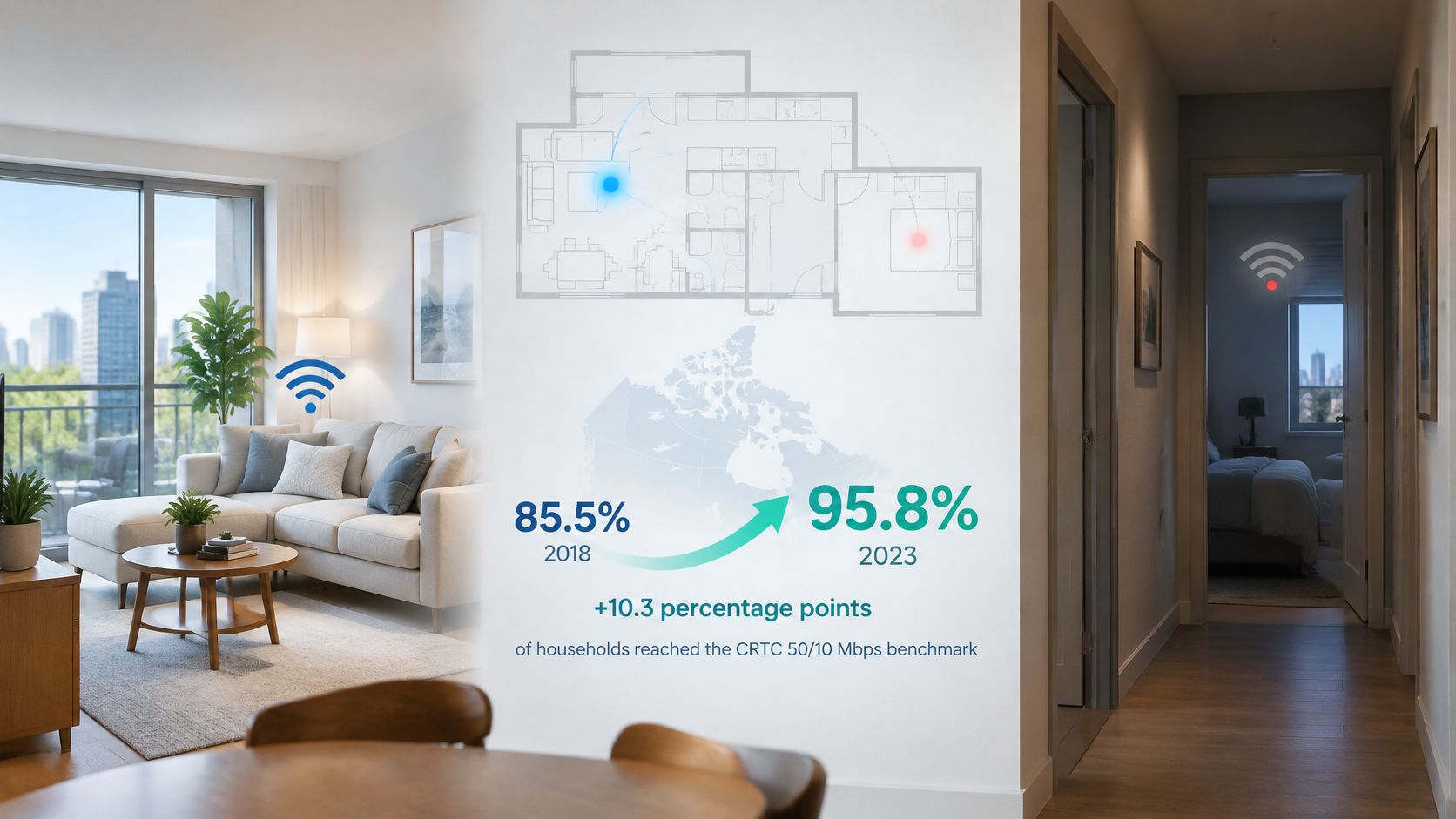
Canadian broadband access and indoor wireless coverage are different problems. Statistics Canada's internet-access indicator shows that household access to fixed service meeting the 50 Mbps download and 10 Mbps upload benchmark reached 95.8% in 2023, compared with 85.5% in 2018.
That describes service availability, not a guarantee that a bedroom receives a good wireless connection. The distinction matters when diagnosing layouts like these.
An open apartment and a concrete condo
In a small, open apartment, keep the gateway and skip both products unless testing identifies a failure. Place it near the centre of the occupied space, not inside a metal media cabinet. If the bedroom already supports stable calls, another access point adds equipment without fixing anything.
A concrete high-rise condo needs a different approach. Say the living room works but the bedroom behind a dense wall doesn't. If only that bedroom matters and Ethernet is impossible, try a Wi-Fi 6 extender outside the room where its upstream connection remains healthy.
If the den and bedroom both fail, plan coordinated mesh coverage, preferably with Ethernet backhaul. Don't hide a node behind the television merely because that's where an unused socket happens to be.
A layout demonstration can help you visualise the placement problem before moving equipment.
A basement gateway and a long bungalow
For a house with the modem in the basement and daily work upstairs, choose mesh rather than a landing extender. Route Ethernet towards the main living level where practical, then locate the access point to serve occupied rooms. Avoid placing it beside the kitchen microwave or inside a utility cabinet.
In a long bungalow, follow the rooms people use rather than the building's outline. Several regularly occupied rooms at the far end justify distributed coverage; a workshop-only problem may justify a targeted extender if there's a strong intermediate connection.
A detached workshop with no usable upstream signal needs a proper connection plan, not an extender plugged into the dead zone. Don't confuse an outlet's availability with a viable wireless path.
Layout check: Good coverage means a stable call at the far seat, not a full signal icon beside the relay.
Square footage alone never chooses the right product. Wall construction, gateway location, cable routes, and the rooms that need service make the decision.
CAD Prices for Mesh and Extenders
Prices vary by model and pack size, so compare the current Canadian-dollar checkout total for the exact product. Check whether the listed price includes every unit in the pack and any required subscription.
| Setup | Nodes | Fits |
|---|---|---|
| Dual-band extender | Single added unit | One nearby dead corner |
| Wi-Fi 6 extender | Single added unit | One room with a healthy upstream connection |
| Dual-band mesh two-pack | Pair | Open condo or bungalow needing distributed coverage |
| Tri-band or 6E mesh three-pack | Three-node kit | Multi-level or difficult layout with suitable backhaul paths |
| Wi-Fi 7 mesh kit | Pair or larger kit | Compatible clients and a connection that benefits from the added capabilities |
| ISP pod rental | Provider-supported expansion | An otherwise well-performing gateway |
These formats don't prescribe how many nodes your home needs. A concrete condo may need only a targeted fix, while an open bungalow may not need mesh.
Compare ownership with rental properly
For an ISP pod, add the recurring charge over the period you expect to keep it. Include any activation, delivery, or replacement conditions shown in the offer, then compare the total with the cost of buying compatible hardware.
A rental can suit you if you value provider support and straightforward gateway integration. Buying can avoid an ongoing charge, but a retail device may not join the ISP's coordinated Wi-Fi system.
When comparing Canadian listings, check:
- Exact model and pack: Similar names can refer to different radios, ports, or unit counts.
- Required extras: Include Ethernet cabling and any installation work your suite permits.
- Feature subscriptions: Separate basic networking from optional security or parental-control services.
- Local purchase conditions: Compare Canadian availability, returns, and seller details alongside the advertised discount.
Spend on the bottleneck
Moving from an extender to mesh can add coordination and backhaul options. Newer radios are worth paying for only if they improve a connection you'll use, such as a client link or wireless backhaul.
A gateway that lacks your preferred setting isn't, on its own, a reason to replace it. Check whether mesh access-point mode can deliver the setup you want.
The Wi-Fi extender buying guide can help you compare targeted options. Celmin's product links to Amazon.ca are paid links, and Celmin may earn a commission from them. Compare the same model with local retailers before choosing where to buy.
Match the purchase to the problem: an otherwise healthy bedroom connection rarely calls for a large mesh pack, while a multi-floor problem may outgrow a cheap repeater.
Choose Mesh or an Extender for Your Floor Plan
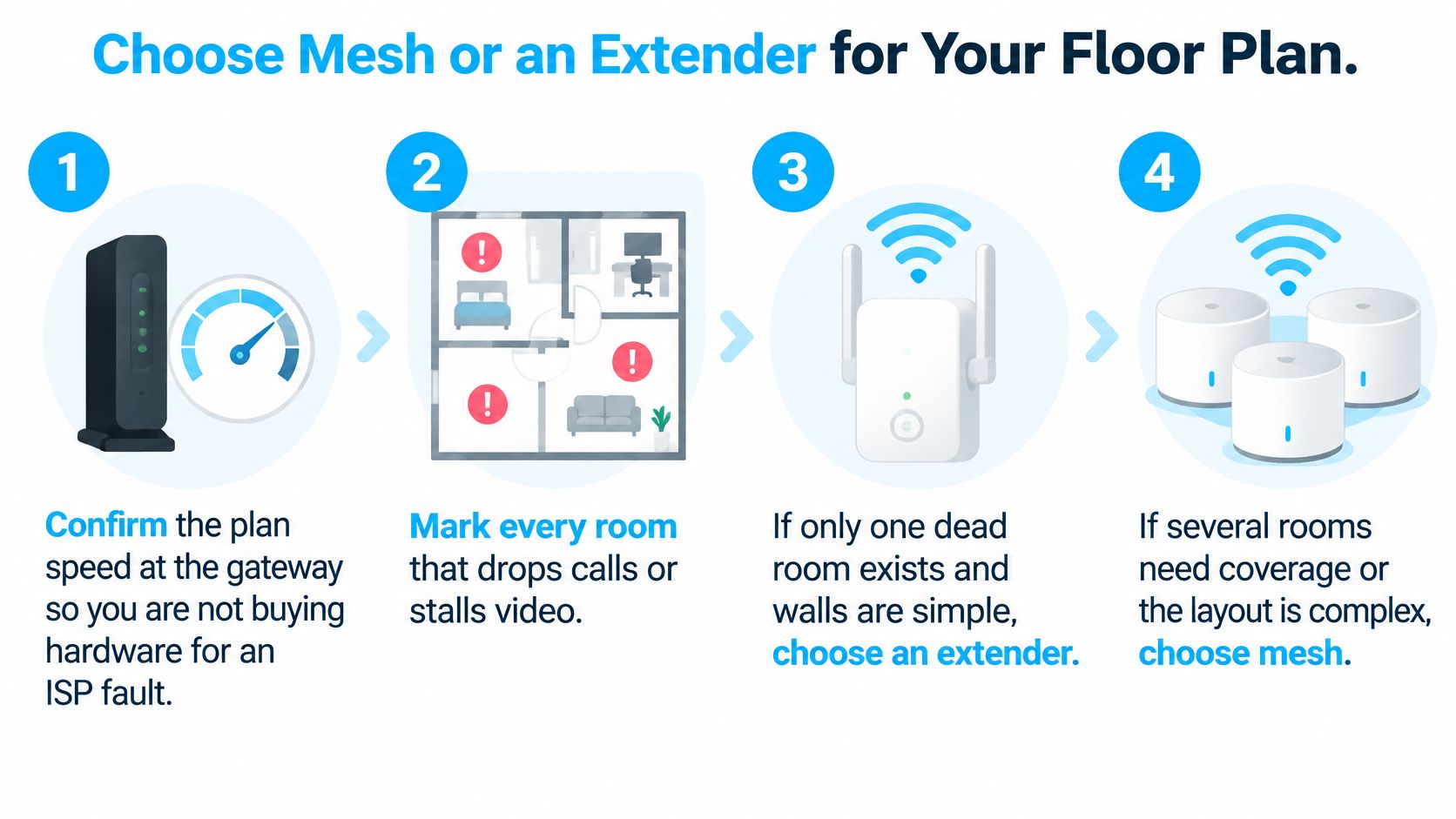
Make the purchase after diagnosis, not before. This sequence keeps the decision tied to your layout and avoids buying extra radios to compensate for a bad upstream connection.
The visual summarises the initial choice.
Buy and place in this order
Confirm service at the gateway. Compare a wired connection with nearby Wi-Fi where practical. Resolve an incoming-service fault before purchasing coverage hardware.
Mark the actual failures. Note where calls drop, uploads stall, or streaming buffers. Include the working seat, not merely the room name.
Choose a targeted repair when the problem is contained. If only a bedroom fails and an intermediate outlet has a healthy connection, an extender is the proportionate purchase.
Plan mesh for distributed failures. When several occupied rooms or another level need help, map access-point locations and favour Ethernet backhaul where the building permits it.
Keep the gateway unless there's a reason to change it. Select compatible access-point or bridge operation deliberately. A missing bridge setting alone doesn't prove replacement is necessary.
Estimate access points before choosing a pack. Celmin's WiFi Coverage Calculator works out how many access points a home needs for full coverage. Use your home's layout and construction details to inform the estimate, then check whether the suggested positions have power and a viable backhaul route.
Validate the installed result. Test a call and sustained transfer from the troublesome seat while the household uses the network. Move the relay before adding more hardware.
Treat an estimate as a placement plan
For an open condo, test whether repositioning the existing gateway satisfies the estimate before purchasing anything. For a bedroom behind concrete, examine the doorway and cable route rather than assuming another wireless hop can cross the obstruction.
For a basement gateway serving an upstairs office, plan the connection between levels first. The access-point count tells you how much equipment to consider; it doesn't guarantee that every possible placement will work.
One dead room gets an extender; a whole Canadian floor plan gets mesh with a backhaul you can trust.
We offer practical networking guides and a WiFi Coverage Calculator to help you choose equipment that fits your home. Visit Celmin to plan your access points, compare mesh with a targeted extender, and check your setup before buying.
Sign up or sign in to join the conversation.