


Buying a printer shouldn't feel like a gamble. Yet here we are—scrolling through endless specs, wondering if that budget-friendly option will leave you with...
Buying a printer shouldn't feel like a gamble. Yet here we are—scrolling through endless specs, wondering if that budget-friendly option will leave you with faded prints and constant paper jams. The truth is, a quality color laser printer all-in-one can transform your workflow, whether you're running a small business or just tired of outsourcing every print job.
Let's cut through the noise and find the right machine for your needs. By the end of this guide, you'll know exactly what features matter, which models deliver, and how to avoid the common pitfalls that leave people frustrated with their purchase.
Why Choose a Color Laser All-in-One Over Inkjet?
Before diving into specific models, let's address the elephant in the room: why laser over inkjet? The answer comes down to three things—cost per page, speed, and reliability.
The Economics of Laser Printing
Inkjet printers lure you in with low upfront costs, then bleed you dry with expensive cartridges. A color laser all-in-one flips this equation. While you'll pay more initially, the cost per page drops dramatically. We're talking 2-5 cents per color page compared to 15-20 cents with most inkjets.
The real cost of a printer isn't the sticker price—it's what you'll spend on toner and maintenance over its lifetime.
For anyone printing more than 200 pages monthly, laser becomes the obvious choice. The toner doesn't dry out like ink cartridges, so you won't waste money on replacements just because you took a printing break.
Speed That Actually Matters
Modern color laser all-in-ones deliver 20-30 pages per minute without breaking a sweat. Compare that to inkjets that crawl along at 8-12 pages per minute, and you'll understand why offices abandoned inkjet years ago.
This speed advantage extends to the first page out time too. Laser printers warm up quickly and start printing within seconds, while inkjets often need time to prime their heads.
Built to Last
Laser printers use a fundamentally different technology—fusing toner to paper with heat rather than spraying liquid ink. This means fewer moving parts, less maintenance, and a longer lifespan. A well-maintained color laser all-in-one can easily last 5-7 years of heavy use.
Key Features to Look For
Not all color laser all-in-ones are created equal. Here's what separates the workhorses from the disappointments.
Print Resolution and Quality
For most business documents, 600 x 600 dpi handles everything beautifully. If you're printing marketing materials or photos, look for models offering 1200 x 1200 dpi or enhanced resolution modes.
| Resolution | Best For | Example Use Cases |
|---|---|---|
| 600 x 600 dpi | Standard documents | Reports, emails, spreadsheets |
| 1200 x 1200 dpi | Marketing materials | Brochures, presentations |
| 2400 x 600 dpi | Photo-quality prints | Product images, portfolios |
Scanning and Copying Capabilities
The "all-in-one" part matters. A quality scanner should offer:
- Automatic Document Feeder (ADF): Essential for multi-page scanning without babysitting the machine - Duplex scanning: Scans both sides automatically, saving time on two-sided documents - Optical resolution of 1200 dpi or higher: Ensures crisp scans for archiving or OCR
If you're digitizing documents regularly, prioritize models with a 50+ sheet ADF. Trust me, manually feeding pages gets old fast.
Connectivity Options
Modern workflows demand flexibility. Your printer should support:
- Wi-Fi and Ethernet: For network sharing across multiple devices - USB direct printing: Print from flash drives without a computer - Mobile printing: AirPrint, Google Cloud Print, or manufacturer apps - NFC tap-to-print: Quick printing from smartphones
A printer that can't connect to your network is just an expensive paperweight in 2026.
For those setting up a home office, wireless connectivity eliminates cable clutter and lets you print from anywhere in the house.
Paper Handling
Consider your typical print jobs:
- Standard tray capacity: 250 sheets minimum for light use, 500+ for busy offices - Bypass tray: For envelopes, labels, and card stock - Automatic duplexing: Prints both sides without manual intervention - Maximum paper size: Letter/A4 is standard; legal size adds versatility
Top Color Laser All-in-One Printers for 2026
Let's look at the models that consistently deliver value across different use cases.
Best for Small Offices: HP Color LaserJet Pro MFP M283fdw
This compact powerhouse hits the sweet spot between capability and footprint. At 22 pages per minute and a 50-sheet ADF, it handles daily office tasks without hogging desk space.
Standout features: - Dynamic security for genuine HP toner - Smart app for mobile management - Energy Star certified for lower power bills
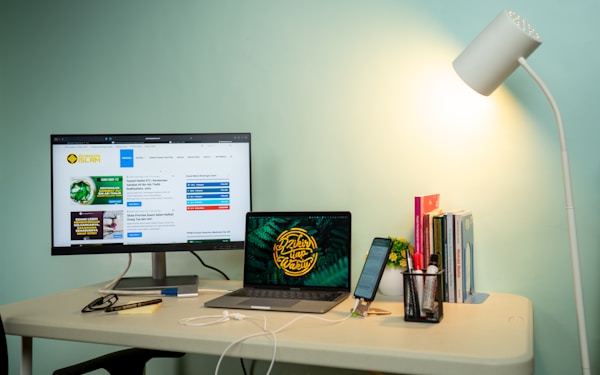
The M283fdw works brilliantly alongside a dual monitor setup, keeping your workspace productive without overwhelming it.
Best for Home Use: Brother MFC-L3770CDW
Brother's reputation for reliability shines here. The L3770CDW offers exceptional value with a C$0.04 cost per color page and intuitive touchscreen controls.
What sets it apart: - Single-pass duplex scanning (scans both sides simultaneously) - Amazon Dash replenishment for automatic toner orders - Compact design fits on most desks
Best for High Volume: Canon imageCLASS MF753Cdw
When you're pushing serious page counts, the MF753Cdw delivers. With 35 pages per minute and expandable paper capacity up to 850 sheets, it's built for demanding environments.
Key advantages: - V2 color technology for vibrant prints - Application library for custom workflows - UFR II printing for faster processing
Best Budget Option: Lexmark MC3326i
Don't let the lower price fool you—Lexmark packed serious features into this affordable package. The MC3326i proves you don't need to overspend for quality.
Budget-friendly highlights: - Cloud Fax capability - Steel frame construction - Unison toner for consistent output
Setting Up Your Color Laser All-in-One
Getting your printer running smoothly from day one saves headaches later. Here's the process that works.
Initial Hardware Setup
- Unpack carefully: Remove all tape and protective materials (there's usually more than you expect)
- Install toner cartridges: Follow the color-coded slots—they only fit one way
- Load paper correctly: Fan the stack first to prevent jams
- Connect power last: Let everything settle before powering on
Network Configuration
For wireless setup:
- Access the printer's control panel menu
- Navigate to Network Settings > Wireless Setup Wizard
- Select your network and enter the password
- Print a network configuration page to confirm connection
Pro tip: Assign a static IP address to your printer. This prevents connection drops when your router reassigns addresses.
If you're expanding your network coverage with a mesh WiFi system, ensure your printer connects to the nearest node for optimal performance.
Driver Installation
Most modern printers work with plug-and-play drivers, but installing the full software suite unlocks advanced features:
- Scan-to-email configuration - Custom print presets - Toner level monitoring - Firmware updates
Download drivers directly from the manufacturer's website rather than using the included CD—you'll get the latest versions with bug fixes.
Maximizing Print Quality and Efficiency
Owning a great printer means nothing if you're not using it effectively. These tips ensure you get the most from your investment.
Optimizing Color Output
Color laser printers excel at consistency, but a few adjustments can elevate your results:
- Calibrate regularly: Run the built-in calibration every 500 pages or when colors drift - Use appropriate paper: Laser-specific paper prevents toner adhesion issues - Adjust density settings: Reduce toner density for internal documents to extend cartridge life
Reducing Cost Per Page
Smart printing habits compound savings over time:
- Draft mode for internal documents: Uses 30-40% less toner - Duplex by default: Cuts paper costs in half - Print preview always: Catches errors before they waste resources - Grayscale when possible: Color toner costs more than black
Maintenance Schedule
A little preventive care extends your printer's life dramatically:
| Task | Frequency | Why It Matters |
|---|---|---|
| Clean scanner glass | Weekly | Prevents streaks on scans |
| Check paper path | Monthly | Removes dust and debris |
| Replace fuser unit | Per manufacturer spec | Maintains print quality |
| Update firmware | Quarterly | Security and performance fixes |
Troubleshooting Common Issues
Even the best printers hiccup occasionally. Here's how to handle the usual suspects.
Paper Jams
The most common complaint, usually caused by:
- Overfilled trays: Never exceed the maximum fill line - Damaged paper: Wrinkled or damp sheets jam easily - Wrong paper type: Thick stock needs the bypass tray - Worn pickup rollers: Replace if jams become frequent
When clearing jams, always pull paper in the direction of travel and check for torn pieces left behind.
Faded or Streaky Prints
If your output looks washed out:
- Check toner levels—low toner causes fading
- Run the cleaning cycle from the maintenance menu
- Inspect the drum unit for scratches or debris
- Verify you're using the correct paper type setting
Connectivity Drops
Network printers sometimes lose connection. Quick fixes:
- Restart the printer and router - Check for IP address conflicts - Update printer firmware - Move the printer closer to the router or access point
For persistent issues, consider connecting via Ethernet for rock-solid reliability.
Color Laser vs. LED: What's the Difference?
You might see "LED printer" mentioned alongside laser options. Here's the quick breakdown:
Laser printers use a single laser beam that scans across the drum to create the image. LED printers use a row of LEDs that flash simultaneously.
The practical differences:
- LED printers have fewer moving parts (potentially more reliable) - Laser printers sometimes offer slightly sharper text - LED printers tend to be more compact - Both use toner and produce similar quality
For most users, the distinction doesn't matter much. Focus on features and reviews rather than the underlying technology.
Environmental Considerations
Printing responsibly matters. Modern color laser all-in-ones include eco-friendly features worth using:
- Energy Star certification: Reduces power consumption by 25-30% - Automatic sleep mode: Drops to minimal power when idle - Toner recycling programs: Most manufacturers accept empty cartridges - Duplex printing: Halves paper consumption
Some manufacturers offer high-yield toner cartridges that reduce packaging waste while lowering your cost per page even further.
Got Questions About Color Laser Printers? Let's Clear Things Up.
How long do color laser toner cartridges last?
Standard yield cartridges typically print 1,500-2,500 pages, while high-yield options reach 4,000-6,000 pages. Your actual results depend on coverage—documents with heavy graphics consume more toner than text-only pages.
The good news? Unlike inkjet cartridges, toner doesn't dry out. You can leave your printer unused for months and pick up right where you left off without wasted supplies.
Can I use third-party toner cartridges?
Technically yes, but proceed with caution. Third-party toner can void warranties, produce inconsistent quality, and potentially damage your printer. Some manufacturers use chips that reject non-genuine cartridges entirely.
If budget is tight, look for manufacturer-refurbished cartridges or high-yield genuine options that lower the per-page cost.
Is a color laser all-in-one good for photo printing?
For occasional photos, modern color laser printers produce acceptable results. However, they can't match the quality of dedicated photo printers or professional inkjets designed for photography.
If photos are a priority, consider keeping a separate photo printer or using a print service for important images while handling documents with your laser all-in-one.
How much space do I need for a color laser all-in-one?
Most models require a footprint of 16-20 inches wide by 16-20 inches deep. Add clearance for paper trays and output areas. Height varies from 12-18 inches depending on the ADF design.
Measure your intended space before purchasing, and remember you'll need access to all sides for maintenance and paper loading.
What's the warm-up time for laser printers?
Modern color laser all-in-ones warm up in 15-30 seconds from sleep mode. First print out time typically runs 10-15 seconds once warmed up. This is significantly faster than older laser technology that required minutes to reach operating temperature.
Ready to upgrade your printing setup? A quality color laser all-in-one pays for itself through lower running costs and time saved. Check out more productivity guides at celmin.ca to optimize your entire workspace.



Discussion
Sign up or sign in to join the conversation.