


Staring at a tiny laptop screen all day is a productivity killer. Your neck hurts from hunching, you're constantly scrolling, and you can't have more than...
Staring at a tiny laptop screen all day is a productivity killer. Your neck hurts from hunching, you're constantly scrolling, and you can't have more than two windows visible at once. If you're working from home—even part-time—a proper monitor is one of the best investments you can make.
The right monitor reduces eye strain, improves posture, and lets you actually see what you're working on. Whether you're crunching spreadsheets, editing photos, or just trying to keep Slack and your email visible simultaneously, there's a perfect monitor for your needs.
Let's find it.
What Makes a Great Home Office Monitor
Key Specifications Explained
| Spec | What It Means | Recommended |
|---|---|---|
| Size | Diagonal measurement | 27-32" for most users |
| Resolution | Pixel count | 4K (3840x2160) or 1440p |
| Panel Type | Display technology | IPS for color accuracy |
| Refresh Rate | Screen updates per second | 60Hz minimum |
| Connectivity | Input options | USB-C preferred |
Size and Resolution Sweet Spots
For productivity, bigger is generally better—up to a point. Here's the breakdown:
- 24": Good for tight spaces, best at 1080p
- 27": The productivity sweet spot, ideal at 1440p or 4K
- 32": Excellent for multitasking, requires 4K for sharp text
- 34"+ ultrawide: Maximum screen real estate, replaces dual monitors
A 27" 4K monitor hits the perfect balance of screen size, resolution, and desk space for most home offices.
Panel Types: IPS vs VA vs TN
IPS (In-Plane Switching): Best color accuracy and viewing angles. Ideal for creative work and general productivity. Slightly higher price.
VA (Vertical Alignment): Better contrast ratios and deeper blacks. Good for mixed use including media consumption. Can have slower response times.
TN (Twisted Nematic): Fastest response times but worst colors and viewing angles. Skip for office work.
Top Home Office Monitors for 2026
Best Overall: Dell UltraSharp U2723QE
Dell's UltraSharp line sets the standard for office monitors. The U2723QE delivers stunning 4K resolution with excellent color accuracy and a USB-C hub built in.
- Size: 27"
- Resolution: 4K (3840x2160)
- Panel: IPS Black
- Connectivity: USB-C (90W), HDMI, DisplayPort
- Price: ~C$815
The IPS Black technology delivers 2000:1 contrast—double typical IPS panels. USB-C connectivity means one cable for video, data, and laptop charging.
Best Value: LG 27UP850-W
LG packs impressive specs into a more affordable package. The 27UP850-W offers 4K resolution with USB-C connectivity at a competitive price.
- Size: 27"
- Resolution: 4K (3840x2160)
- Panel: IPS
- Connectivity: USB-C (96W), HDMI, DisplayPort
- Price: ~C$545
DCI-P3 95% color coverage makes it suitable for creative work, not just spreadsheets.
Best Ultrawide: LG 34WN80C-B
If you want to ditch the dual-monitor setup, an ultrawide provides seamless screen real estate. The LG 34WN80C-B curves gently for comfortable viewing.
- Size: 34" ultrawide (21:9)
- Resolution: 3440x1440
- Panel: IPS
- Connectivity: USB-C (60W), HDMI
- Price: ~C$680
The 21:9 aspect ratio is perfect for side-by-side windows or immersive work.
Best Budget: ASUS ProArt PA278CV
ASUS brings professional-grade color accuracy to a budget-friendly package.
- Size: 27"
- Resolution: 1440p (2560x1440)
- Panel: IPS
- Connectivity: USB-C (65W), HDMI, DisplayPort
- Price: ~C$410
Factory-calibrated with Calman verification, it's ideal for designers on a budget.
Best for Dual Setup: Dell P2722H
Planning a dual monitor setup? The P2722H offers thin bezels and excellent value for multi-monitor configurations.
- Size: 27"
- Resolution: 1080p (1920x1080)
- Panel: IPS
- Connectivity: HDMI, DisplayPort, USB hub
- Price: ~C$340
The adjustable stand and VESA compatibility make positioning easy.
Monitor Comparison Table
| Model | Size | Resolution | USB-C | Price |
|---|---|---|---|---|
| Dell U2723QE | 27" | 4K | 90W | C$815 |
| LG 27UP850-W | 27" | 4K | 96W | C$545 |
| LG 34WN80C-B | 34" UW | 1440p UW | 60W | C$680 |
| ASUS PA278CV | 27" | 1440p | 65W | C$410 |
| Dell P2722H | 27" | 1080p | No | C$340 |
USB-C: The Game Changer
Why USB-C Matters
A USB-C monitor with Power Delivery transforms your setup:
- One cable: Video, data, and power through a single connection
- Clean desk: No separate charger cluttering your workspace
- Easy docking: Plug in your laptop and everything connects
- Future-proof: USB-C is the standard going forward
Power Delivery Wattage
Match the monitor's power output to your laptop's needs:
- 65W: Sufficient for most ultrabooks and MacBook Air
- 90W: Handles MacBook Pro 14" and similar
- 96W+: Powers larger laptops under load
Ergonomics and Eye Health
Adjustability Features
A good monitor stand offers:
- Height adjustment: Screen top at or slightly below eye level
- Tilt: 5° forward, 20° backward typical
- Swivel: Rotate left/right without moving the base
- Pivot: Rotate to portrait orientation
If your monitor lacks adjustability, a VESA monitor arm solves the problem and frees up desk space.
Reducing Eye Strain
Long hours at a monitor take a toll. Look for:
- Flicker-free technology: Eliminates invisible flickering
- Low blue light modes: Reduces eye fatigue, especially at night
- Matte coating: Minimizes reflections and glare
For more tips on protecting your eyes, check our guide on how to reduce eye strain.
The 20-20-20 Rule
Every 20 minutes, look at something 20 feet away for 20 seconds. No monitor feature replaces this simple habit.
Setting Up Your Monitor
Optimal Positioning
- Distance: Arm's length away (20-26 inches)
- Height: Top of screen at or slightly below eye level
- Angle: Slight upward tilt (10-20°)
- Lighting: Perpendicular to windows to avoid glare
Calibration Basics
Out-of-box settings are rarely optimal. At minimum:
- Brightness: Match ambient lighting (not maximum)
- Color temperature: 6500K for accurate colors, warmer for comfort
- Contrast: Usually fine at default
For creative work, consider a hardware calibrator like the Datacolor SpyderX.
Complementary Upgrades
Complete Your Setup
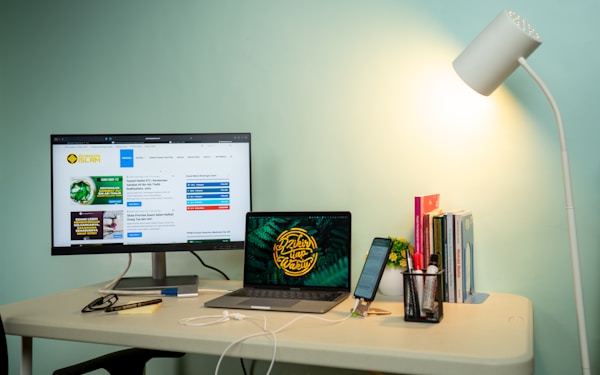
A great monitor deserves a great environment:
- Home office lighting: Proper lighting reduces eye strain
- Cable management: Keep your desk clean and organized
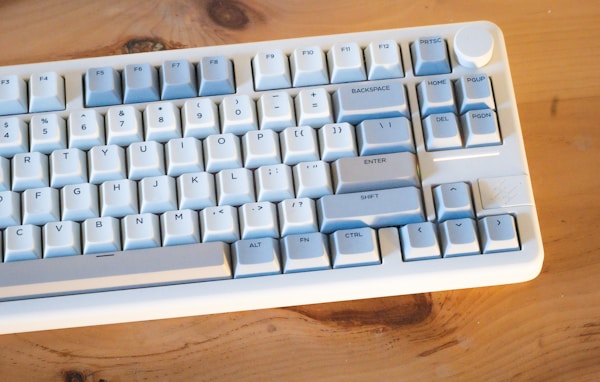
- Mechanical keyboard: Upgrade your typing experience
- Monitor arm: Free up desk space and improve positioning
Got Questions About Home Office Monitors? Let's Clear Things Up.
Is 4K worth it for office work?
For 27" and larger monitors, absolutely. 4K provides noticeably sharper text, which reduces eye strain during long work sessions. At 24", the difference is less dramatic. The extra resolution also means more screen real estate for windows and documents.
Should I get one large monitor or two smaller ones?
Both work. A single 34" ultrawide provides seamless screen space without bezels interrupting your view. Dual monitors offer more flexibility—you can angle them, use different orientations, or turn one off. For most people, a single 27-32" 4K monitor is the simplest solution.
How important is refresh rate for office work?
Not very. 60Hz is perfectly fine for productivity tasks. Higher refresh rates (120Hz, 144Hz) benefit gaming and video work but won't improve your spreadsheet experience. Don't pay extra for high refresh rate unless you also game.
Do I need a curved monitor?
Curved monitors reduce eye strain on ultrawides by keeping all parts of the screen equidistant from your eyes. For standard 27" monitors, curvature is unnecessary and mostly aesthetic. For 34"+ ultrawides, a gentle curve (1800R-3800R) is beneficial.
Can I use a TV as a monitor?
Technically yes, but it's not ideal. TVs typically have higher input lag, less accurate colors, and coatings optimized for viewing distance rather than close work. A proper monitor will serve you better for productivity.
Ready to upgrade your workspace? The Dell UltraSharp U2723QE is our top pick for most home offices, while the LG 27UP850-W offers excellent value. For setup tips, explore our guides on dual monitor setup and home office lighting.


Discussion
Sign up or sign in to join the conversation.