
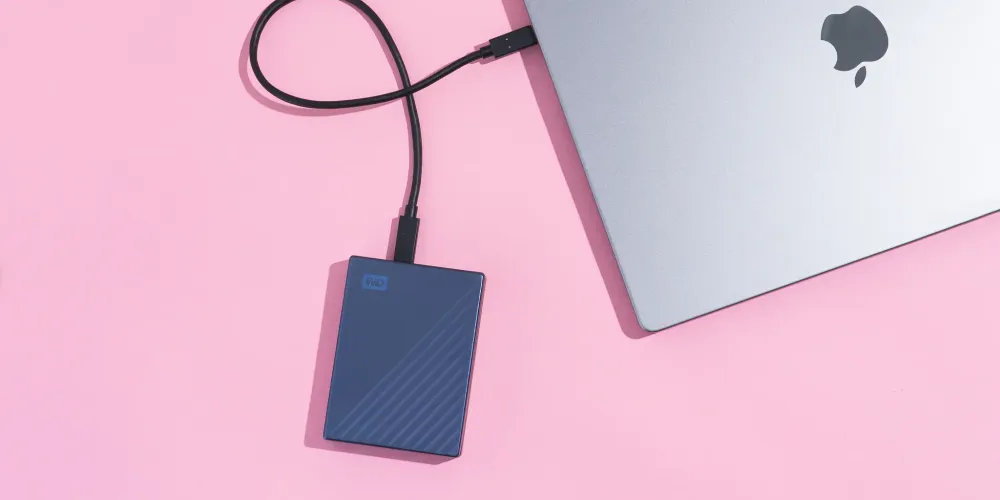

Your laptop's internal storage fills up faster than you'd expect. Photos, videos, work files, games—suddenly that 256GB or even 512GB drive is gasping for...
Your laptop's internal storage fills up faster than you'd expect. Photos, videos, work files, games—suddenly that 256GB or even 512GB drive is gasping for space. An external hard drive solves this instantly, giving you terabytes of storage that travels with you.
But the external storage market is confusing. HDDs vs SSDs, USB 3.0 vs Thunderbolt, portable vs desktop—the choices multiply quickly. The right drive depends on what you're storing, how often you access it, and whether portability matters.
Let's cut through the confusion and find your perfect storage solution.
HDD vs SSD: The Fundamental Choice
Hard Disk Drives (HDD)
Traditional spinning drives offer massive capacity at low prices.
Pros:
- Much cheaper per terabyte
- Available in huge capacities (up to 24TB+)
- Good for archival storage
Cons:
- Slower read/write speeds
- Moving parts can fail
- Sensitive to drops and vibration
- Heavier and bulkier
Solid State Drives (SSD)
Flash-based storage with no moving parts.
Pros:
- Much faster (up to 20x HDD speeds)
- Durable—survives drops
- Silent operation
- Compact and lightweight
Cons:
- Higher cost per terabyte
- Smaller maximum capacities
- Can wear out with heavy write usage
| Factor | HDD | SSD |
|---|---|---|
| 1TB Price | ~C$68 | ~C$109 |
| 4TB Price | ~C$135 | ~C$340 |
| Speed | 100-150 MB/s | 500-2000+ MB/s |
| Durability | Fragile | Rugged |
| Best For | Backup, archives | Active work, video editing |
For most people, an HDD handles backup and archival storage perfectly. SSDs shine when you need speed—video editing, running applications, or frequent file access.
Top External Hard Drives for 2026
Best Portable HDD: WD My Passport
Western Digital's flagship portable drive balances capacity, reliability, and price.
- Capacity: 1TB, 2TB, 4TB, 5TB
- Speed: USB 3.0 (up to 130 MB/s)
- Features: Password protection, auto backup software
- Price: ~C$82 (2TB), ~C$135 (4TB)
The slim design fits in any bag, and WD's reliability is well-established.
Best Value HDD: Seagate Portable Drive
Seagate offers similar specs at slightly lower prices.
- Capacity: 1TB, 2TB, 4TB, 5TB
- Speed: USB 3.0
- Features: Rescue data recovery services
- Price: ~C$75 (2TB), ~C$122 (4TB)
The included data recovery service provides peace of mind for important files.
Best Desktop HDD: WD Elements Desktop
When portability isn't needed, desktop drives offer more capacity.
- Capacity: 4TB, 6TB, 8TB, 12TB, 14TB
- Speed: USB 3.0
- Features: Plug-and-play, formatted for Windows
- Price: ~C$135 (6TB), ~C$245 (12TB)
Requires wall power but offers massive storage at excellent prices.
Best Rugged HDD: LaCie Rugged Mini
Built for photographers and field work.
- Capacity: 1TB, 2TB, 4TB, 5TB
- Speed: USB 3.0
- Features: Drop, crush, and rain resistant
- Price: ~C$122 (2TB), ~C$175 (4TB)
The iconic orange rubber bumper has protected countless drives in harsh conditions.
Best Portable SSD: Samsung T7
When speed matters more than capacity.
- Capacity: 500GB, 1TB, 2TB
- Speed: Up to 1,050 MB/s
- Features: Password protection, compact design
- Price: ~C$109 (1TB), ~C$175 (2TB)
For a deeper dive into SSDs, see our best portable SSD guide.
External Drive Comparison
| Drive | Type | 2TB Price | Speed | Best For |
|---|---|---|---|---|
| WD My Passport | HDD | C$82 | 130 MB/s | Portable backup |
| Seagate Portable | HDD | C$75 | 130 MB/s | Budget backup |
| WD Elements Desktop | HDD | C$95 | 130 MB/s | Mass storage |
| LaCie Rugged Mini | HDD | C$122 | 130 MB/s | Field work |
| Samsung T7 | SSD | C$175 | 1,050 MB/s | Speed priority |
Choosing the Right Capacity
Estimating Your Needs
| Content Type | Approximate Size |
|---|---|
| Documents | 1-10 MB each |
| Photos (RAW) | 25-50 MB each |
| Photos (JPEG) | 3-10 MB each |
| Music (MP3) | 3-10 MB per song |
| HD Video | 3-5 GB per hour |
| 4K Video | 20-40 GB per hour |
| Games | 30-100 GB each |
Capacity Recommendations
- 1TB: Basic document backup, small photo library
- 2TB: Average user, moderate photo/video collection
- 4TB: Large media library, multiple device backups
- 8TB+: Video editors, photographers, complete system archives
Backup Strategies
The 3-2-1 Rule
- 3 copies of important data
- 2 different storage types (e.g., internal + external)
- 1 copy offsite (cloud or physical location)
Backup Software Options
- Windows: File History, Backup and Restore
- Mac: Time Machine (works great with external drives)
- Cross-platform: Backblaze, Acronis, Carbon Copy Cloner
Automated vs Manual Backup
Automated backup runs on schedule without intervention. Set it up once and forget it. Time Machine and File History handle this well.
Manual backup gives you control but requires discipline. Most people forget to do it regularly.
Portable vs Desktop Drives
Portable Drives
- Powered by USB (no wall outlet needed)
- Compact and lightweight
- Limited to ~5TB capacity
- Slightly slower due to 2.5" drive size
Desktop Drives
- Require wall power
- Larger and heavier
- Available up to 24TB+
- Faster 3.5" drives inside
- Better cooling for sustained use
For backup that stays on your desk, desktop drives offer better value per terabyte.
Reliability Considerations
Drive Lifespan
HDDs typically last 3-5 years with regular use. Factors affecting lifespan:
- Operating temperature (keep cool)
- Physical shocks (handle gently)
- Power cycles (frequent on/off stresses drives)
- Usage intensity (constant writes wear faster)
Warning Signs
Replace your drive if you notice:
- Clicking or grinding sounds
- Frequent disconnections
- Slow performance degradation
- Files becoming corrupted
- SMART errors in disk utilities
Data Recovery
If a drive fails:
- Stop using it immediately
- Professional recovery costs C$410-1500+
- Some drives include recovery services (Seagate Rescue)
- Prevention (backups) is far cheaper than recovery
Got Questions About External Hard Drives? Let's Clear Things Up.
How long can I store data on an external hard drive?
HDDs can retain data for 5-10 years without power, though periodic use extends this. For true long-term archival, power on the drive annually and verify data integrity. SSDs may lose data faster when unpowered (months to years depending on conditions).
Should I leave my external drive plugged in all the time?
For backup drives, yes—this enables automatic backups. For general storage, it's fine either way. Modern drives handle power cycling well. Desktop drives should remain plugged in; frequent power cycles stress them more than laptops drives.
Why is my external drive slower than advertised?
USB 2.0 ports limit speeds to ~35 MB/s regardless of drive capability. Ensure you're using USB 3.0 (blue port) or faster. Also, fragmented drives, nearly full drives, and small file transfers are inherently slower.
Can I use an external drive with both Mac and Windows?
Yes, but formatting matters. exFAT works on both platforms without size limits. Drives formatted as NTFS (Windows) are read-only on Mac without additional software. Mac-formatted drives (APFS/HFS+) don't work on Windows without third-party tools.
Is it safe to use an external drive for important files?
As your only copy? No. Drives fail. Use external drives as part of a backup strategy, not as primary storage for irreplaceable files. Follow the 3-2-1 rule for anything you can't afford to lose.
External storage remains essential despite cloud services. Start with the WD My Passport for reliable portable backup, or a desktop drive for maximum capacity. For speed-critical work, check our portable SSD guide.

Discussion
Sign up or sign in to join the conversation.